The Features Tab
Written By Sinan Murat
Last updated 3 months ago
The Features tab shows you which parts of the platform your customers are using - and how well. Instead of looking at one account at a time, this tab rolls everything up by feature so you can see the bigger picture.
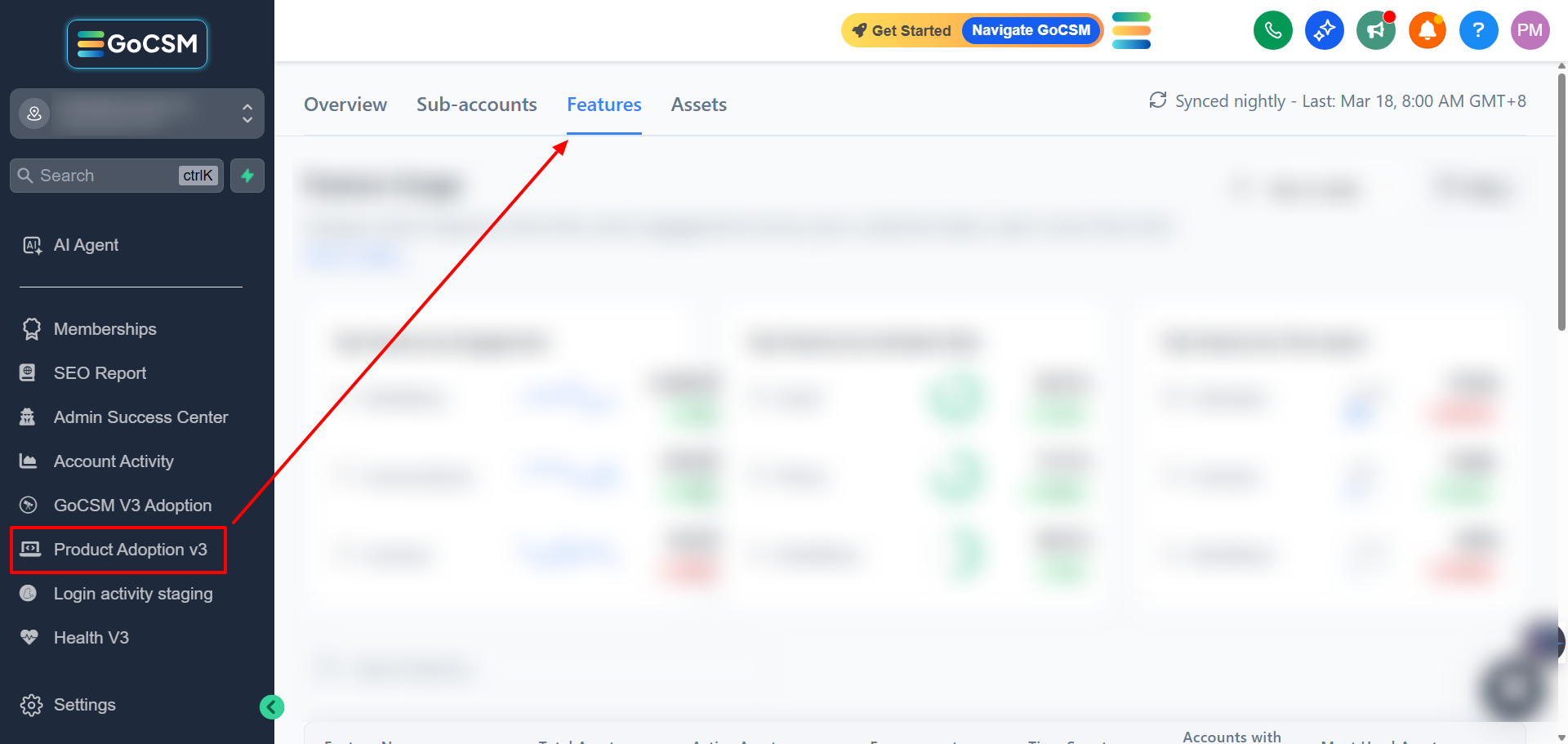
The Highlight Cards

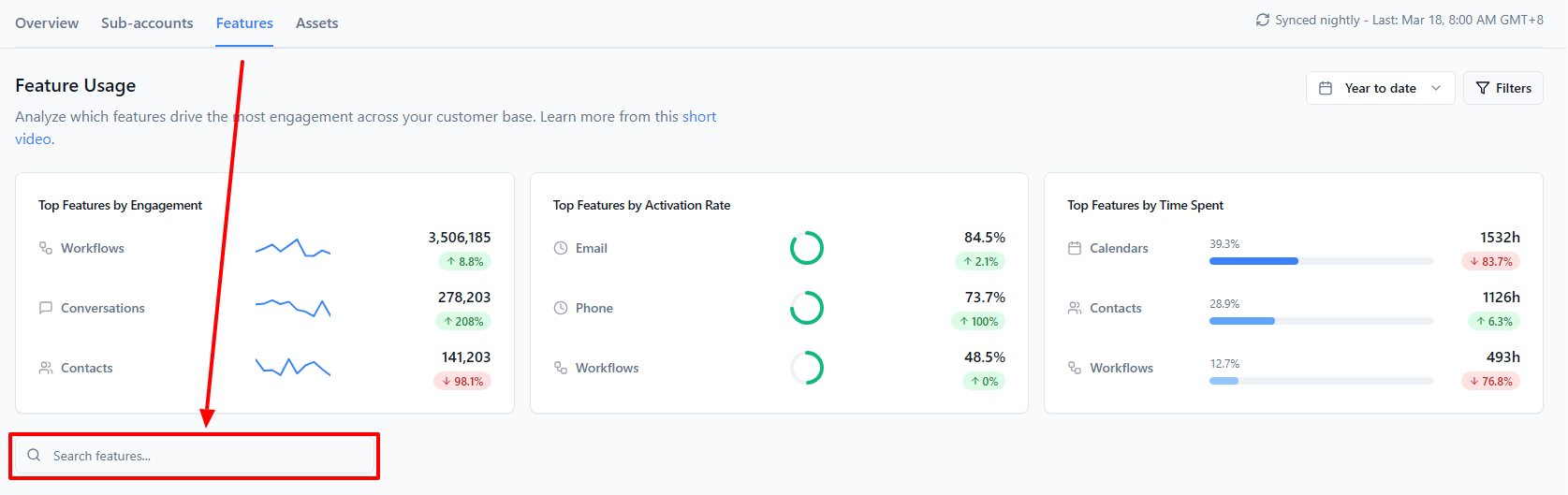
At the top of the tab, three cards call out your standout features:
Top Features by Engagement - The three features where the most actions are being taken across all accounts
Top Features by Activation Rate - The three features where the highest percentage of accounts have fully set them up
Top Features by Time Spent - The three features where your customers are spending the most time
These are useful for spotting what's working well and what might need more attention or promotion.
The Features Table
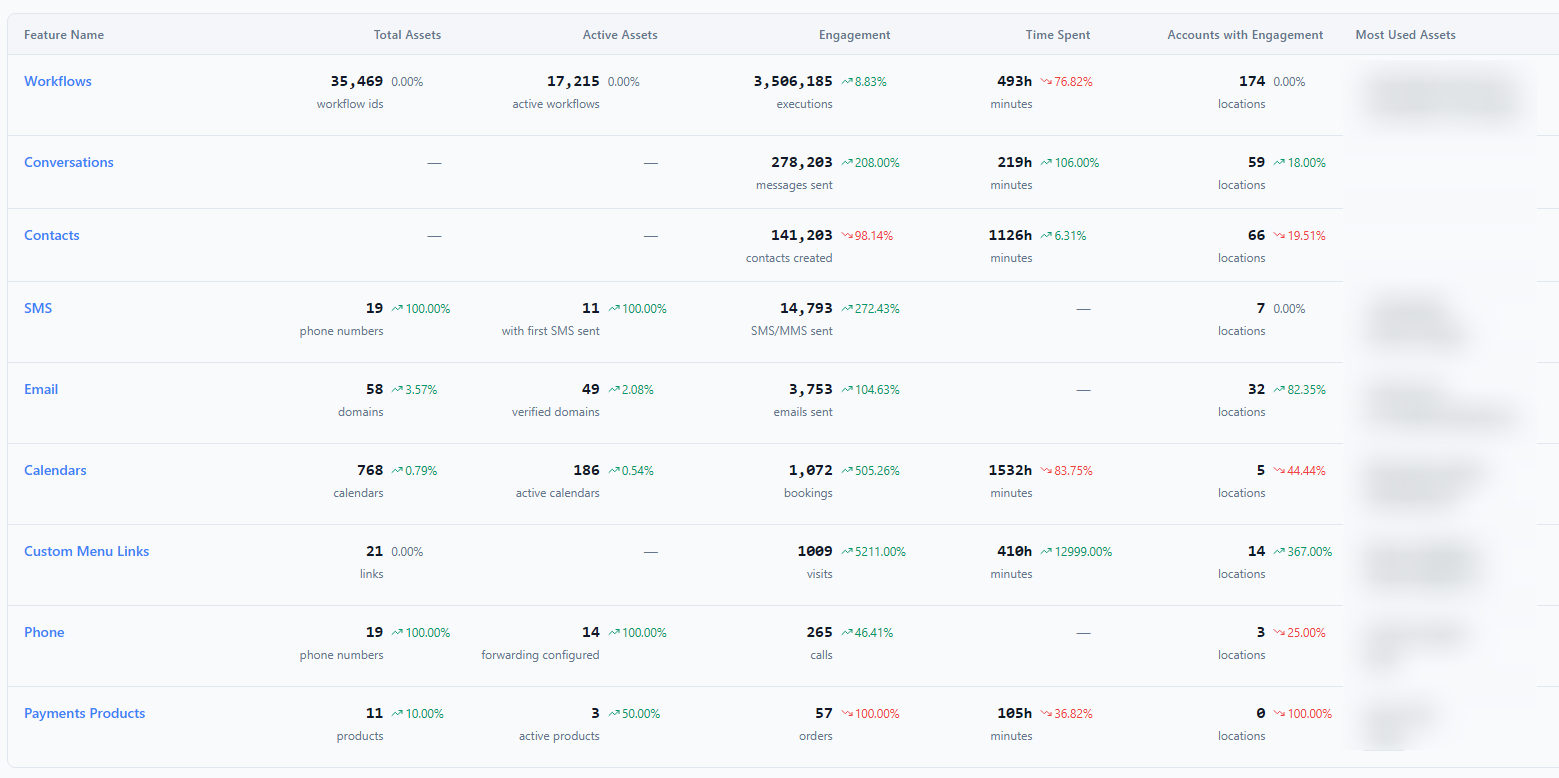
Below the cards, a table lists all nine tracked features. For each one, you'll see:
Total Assets - How many items have been created for this feature across all accounts (e.g., total number of workflows created)
Active Assets - How many of those items are set up and working
Engagement - Total activity count for this feature (e.g., total workflow runs)
Time Spent - Total time customers have spent using this feature
Accounts with Engagement - How many accounts have used this feature at least once
Most Used Assets - A quick preview of the most popular individual items (e.g., the workflow names that run the most)
You can click any feature name or metric to drill deeper. Some features like Contacts and Conversations don't have "assets" in the traditional sense, so those columns will show a dash for those rows.
Features Tracked Reference
Searching and Filtering
Use the search bar to find a specific feature by name.
You can also use the filters to narrow the data to a specific group of accounts. Here's what each filter does:
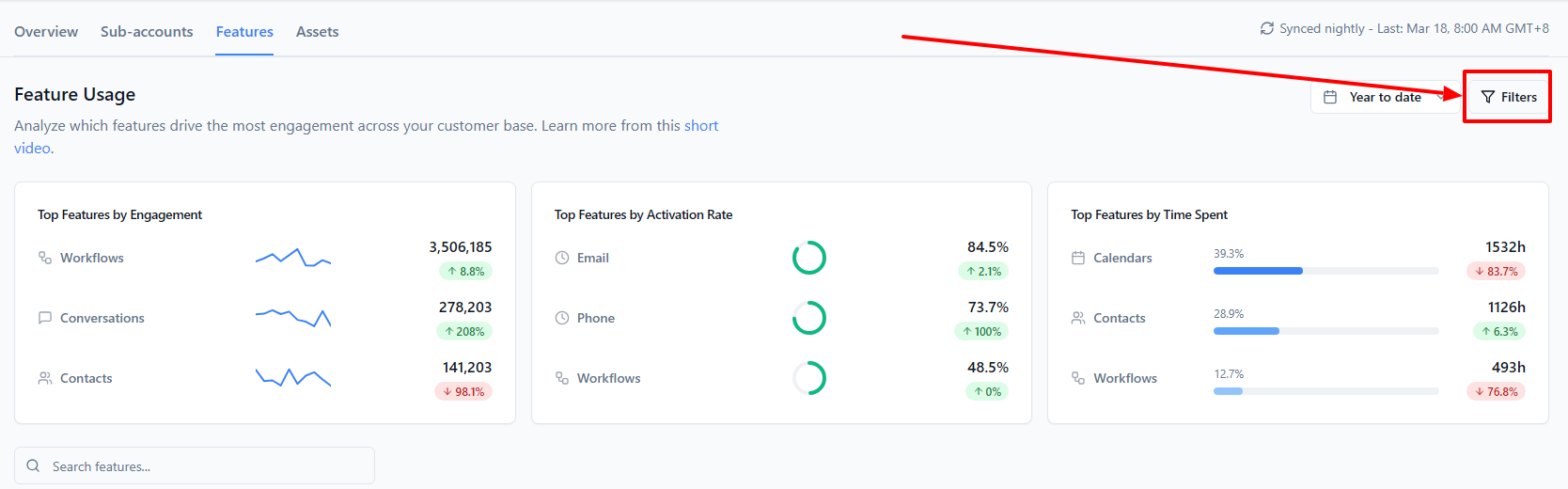
Account - Select one or more specific accounts to see feature data for those accounts only. You can search within this list if you have a large number of accounts.
Plan - Filter by one or more subscription plans. The plans listed here are pulled directly from your GHL Agency SaaS Configurator, so they will match exactly what you've set up there.
Signed Up - Narrow the data to accounts that signed up within a specific window. Options are: All accounts, Last 7 days, Last 15 days, Last 30 days, or Last 90 days.