Overview Tab
Written By Sara Irfan
Last updated 5 months ago
What is the Overview Tab?
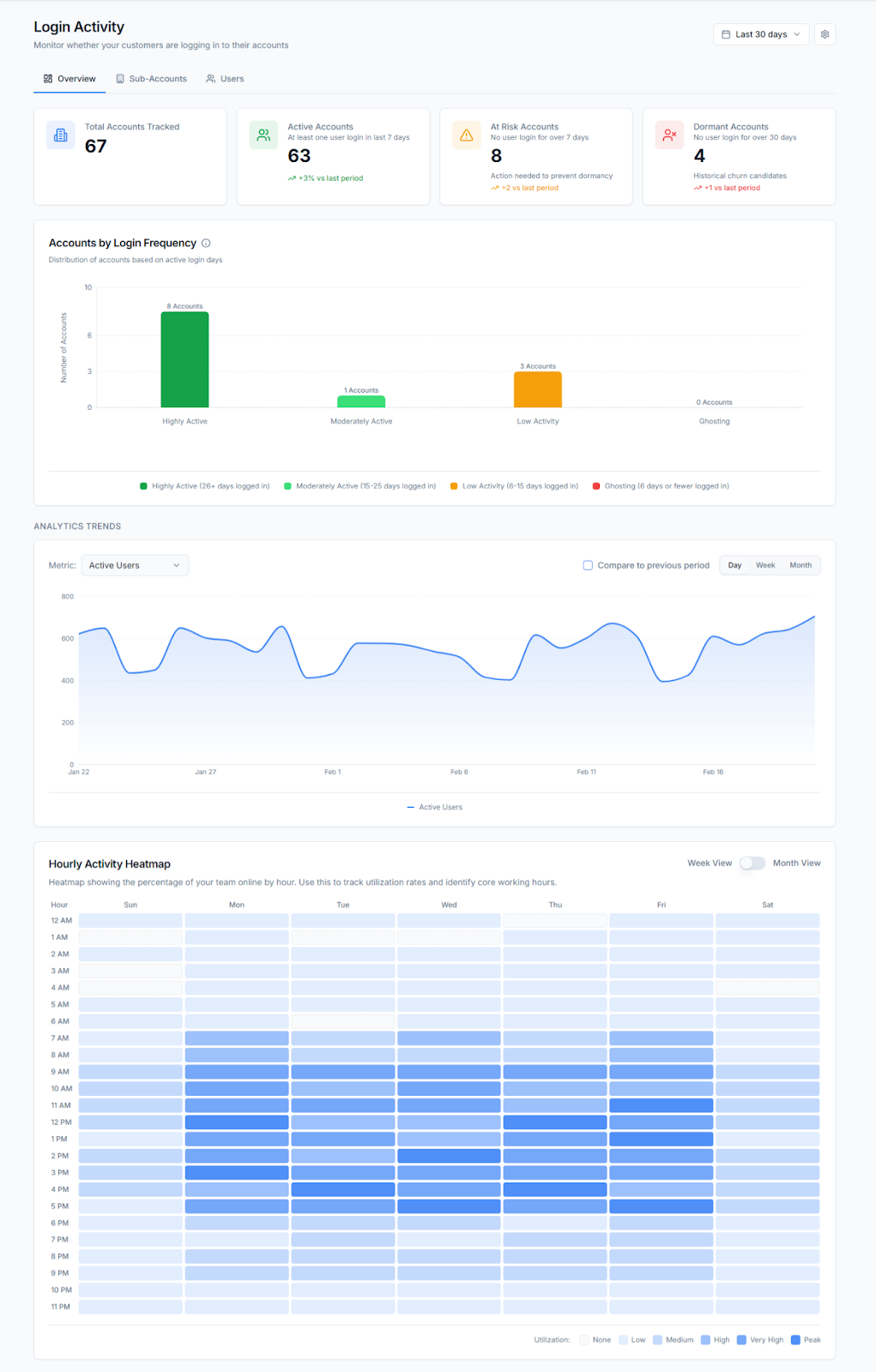
The Overview Tab is your high-level snapshot of engagement across your entire SaaS portfolio. It shows aggregate metrics. How many accounts are active, at risk, dormant, and how engagement is trending over time.
What You Can Do with the Overview Dashboard
Spot portfolio-wide trends at a glance. See whether your active account count is growing or shrinking compared to the previous period using trend indicators.
Identify how many accounts need immediate attention. At Risk and Dormant counts tell you exactly how many sub-accounts are disengaging.
Track the impact of initiatives. Launched a new onboarding sequence or ran a training webinar? Watch the trend indicators to see if Active Accounts increased afterward.
Use Frequency Distribution to understand engagement quality. See how your accounts break down across Heavy, Regular, Casual, and Ghosting categories.
Overview Dashboard Metrics
Frequency Distribution
What is Frequency Distribution?
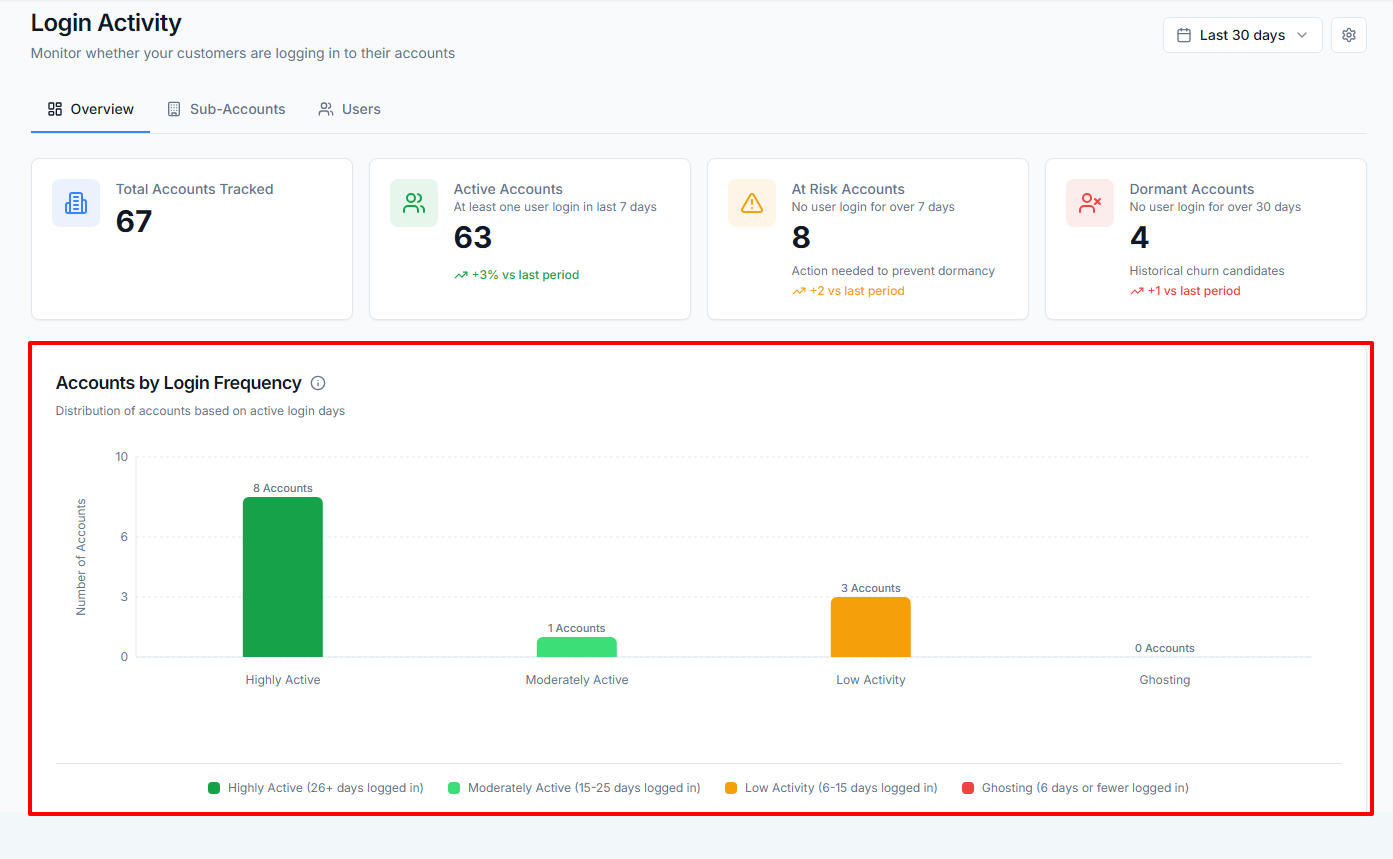
Frequency Distribution categorizes your sub-accounts by how consistently they use your platform, measured as the percentage of days with at least one login within a given time range. It answers: "How many of my accounts are truly engaged vs. just checking in occasionally vs. ghosting?"
What You Can Do with Frequency Distribution
Understand the health of your portfolio at a glance. See how your accounts break down across Heavy, Regular, Casual, and Ghosting categories.
Set benchmarks and track improvement. Check Frequency Distribution monthly. If your Ghosting percentage drops after an onboarding overhaul, that's measurable ROI.
Identify the right intervention for each group. Heavy users → upsell and testimonials. Regular users → maintain with check-ins. Casual users → investigate what's blocking deeper adoption. Ghosting → re-engagement campaign.
Frequency Categories
💡 Important: This measures distinct days with activity, not total logins. A sub-account that logs in 50 times on one day counts the same as logging in once on that day.
Settings Panel
What is the Settings Panel?
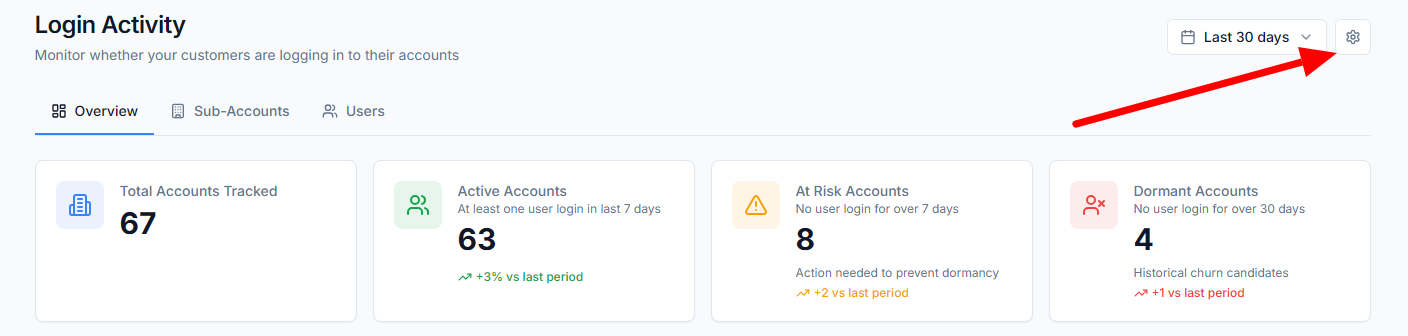
The Settings Panel controls global display filters that affect what data you see across all tabs. Access it via the gear icon in the dashboard header. These settings don't change the underlying data, they change what's visible to you.
What You Can Do with the Settings Panel
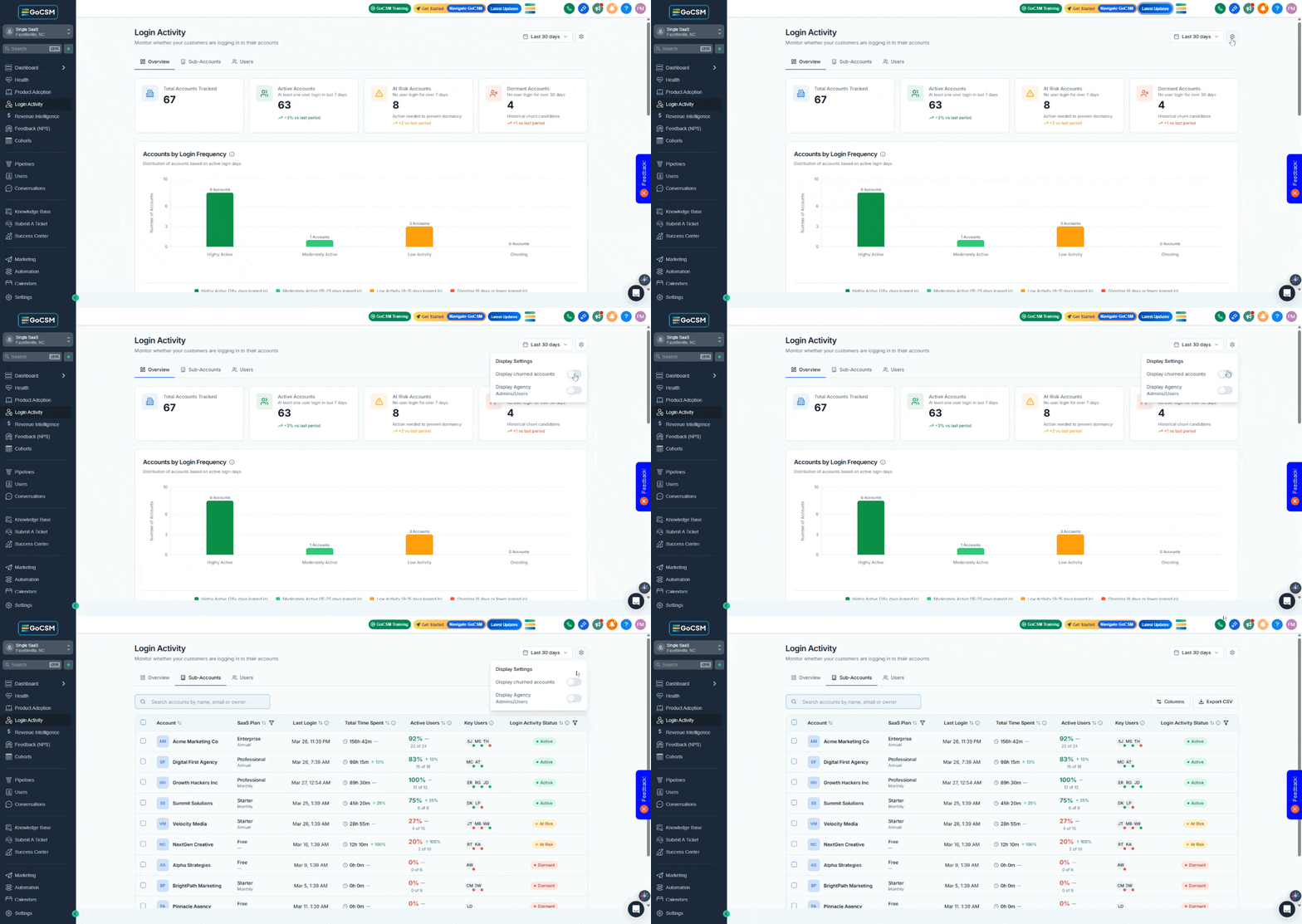
Exclude churned accounts from your view. By default, sub-accounts with status "churned" or "cancelled" are hidden. This keeps your dashboard focused on active business.
Include churned accounts for analysis. Toggle "Display Churned Accounts" ON when you want to analyze churn patterns, Like comparing the login activity of churned accounts before they left vs. accounts that stayed.
Hide agency admin noise. Toggle "Display Agency Admins/Users" OFF (default) to exclude your agency-level admin users from the Users tab. This prevents your own team's login activity from skewing client engagement metrics.
Show agency admin activity when needed. Toggle “Display Agency Admins/Users” ON when you want to see all users including agency admins.
Settings Guide
💡 Why exclude agency admins? Agency admins often log in frequently for administrative tasks. Including them can skew engagement metrics for end-customer usage.
Common Questions & Answers
Why don't the numbers on the Overview tab match what I see on the Sub-Accounts tab?
The Overview and Sub-Accounts tabs can show different counts depending on your Settings. If "Include Churned Accounts" is toggled differently, or if you have active filters on the Sub-Accounts tab, the totals won't match. Check that your settings and filters are consistent across both views.
Is the Overview Dashboard real-time?
No. Events are batched and buffered for performance. The typical delay is 30 seconds to 2 minutes. If you just onboarded a new client and they logged in moments ago, wait 2-3 minutes and refresh.
Why are my numbers different from my colleague's dashboard?
You likely have different settings toggled. If one person has "Include Churned Accounts" ON and the other has it OFF, every metric will differ. Align on standard settings within your team to avoid confusion.
Can my sub-account users see that they're being tracked?
No. Only your agency admins have access to GoCSM data and tracking capabilities. Your sub-account clients and their users have no visibility into Login Activity tracking.
How do I stop tracking Login Activity for test/snapshot/internal sub-accounts?
Go to Health → Actions → Exclude Specific Sub-Accounts. This lets you remove internal, test, and snapshot sub-accounts from your Login Activity data so they don't pollute your metrics. You can also select multiple accounts and use “Bulk Actions” to exclude them in bulk.
Was this helpful?
Still need help? Ask the team