Feature Assets is Empty Since Sign-Up (Trigger)
Written By GoCSM Team
Last updated 5 months ago
Overview
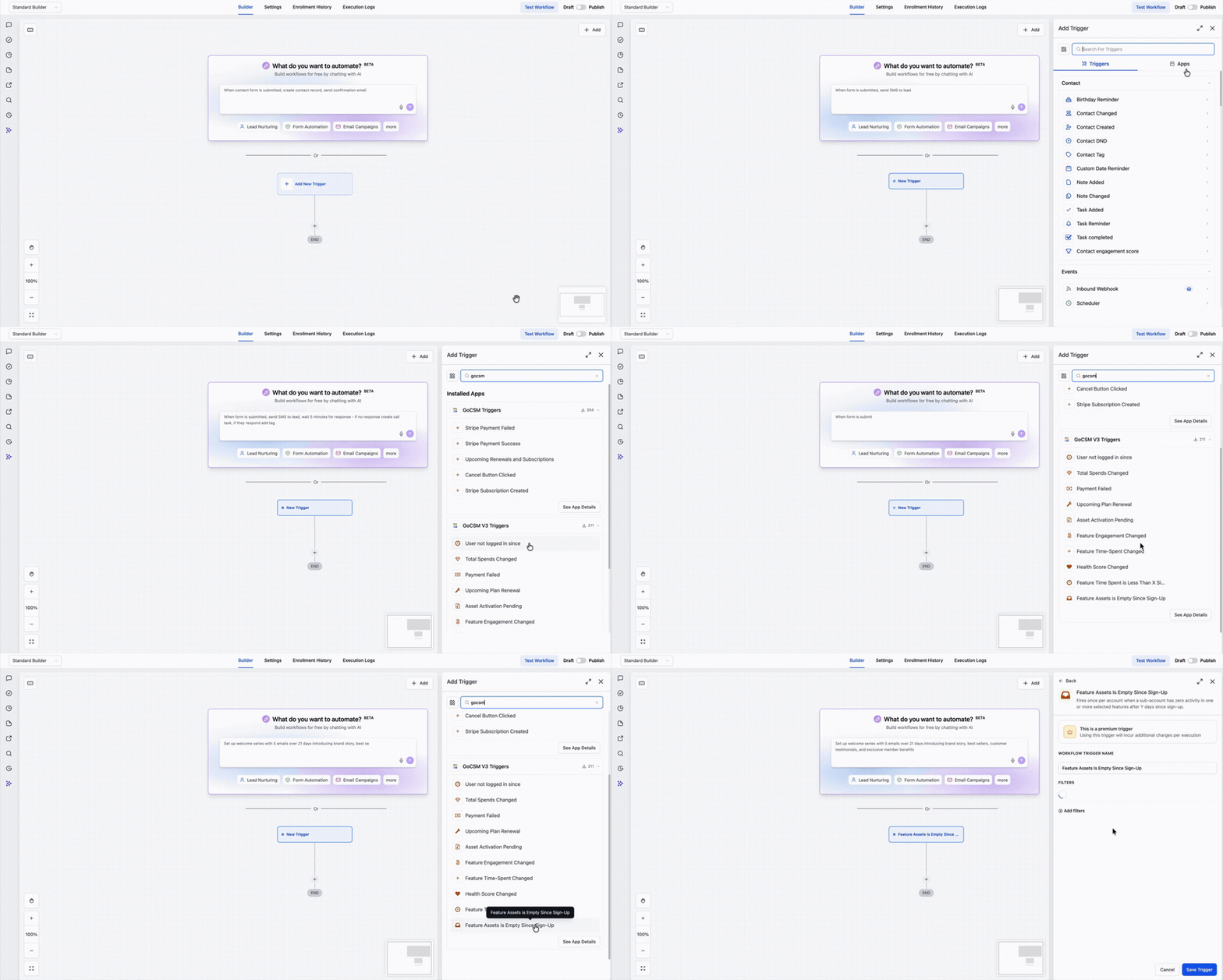
The Feature Assets is Empty Since Sign-Up trigger fires when a sub-account has created zero assets in one or more selected features after a configured number of days since the account was provisioned.
This is the earliest and most critical signal in the Product Adoption trigger family. It identifies accounts that have never taken a first step — no workflows built, no calendars created, no phone numbers added. Nothing.
By the time you notice a stalled account on the Subaccounts dashboard, the client may already be disengaged. This trigger converts that passive dashboard metric into an actionable automation event, firing at exactly the right moment so you can intervene while there is still time.
How the Trigger Works
GoCSM evaluates this trigger nightly as part of the Product Adoption data sync. Each night, it checks all active subscriptions and asks: has this sub-account created any assets in the features you selected — and have they been on the platform long enough to have done so?
If the answer is no, the trigger fires.
When it fires, all empty features are bundled into a single payload. You get one event per account per evaluation cycle, regardless of how many features are empty. The {{feature.empty_features}} variable tells you exactly which features have no assets, and {{feature.empty_count}} tells you how many — giving you everything you need for conditional branching inside the workflow.
A few important things to know about timing:
Asset counts reflect the state at the last completed nightly sync. A sub-account that creates its first asset today will not suppress the trigger until the following night's evaluation.
The trigger does not fire retroactively for accounts that were already past the configured threshold when you activated the workflow. Evaluation begins from the activation date.
The trigger fires once when the condition is first met. It will only re-fire if you have configured the Revisit filter and the condition still holds at the next revisit window.
Trigger Filters
Filters control which accounts activate this trigger and how the trigger behaves over time. Two filters are required. Three are optional.
Days Since Sign-Up (Required)
Sets the time threshold. The trigger fires when a sub-account has been provisioned for at least this many days and still has zero assets in the selected features.
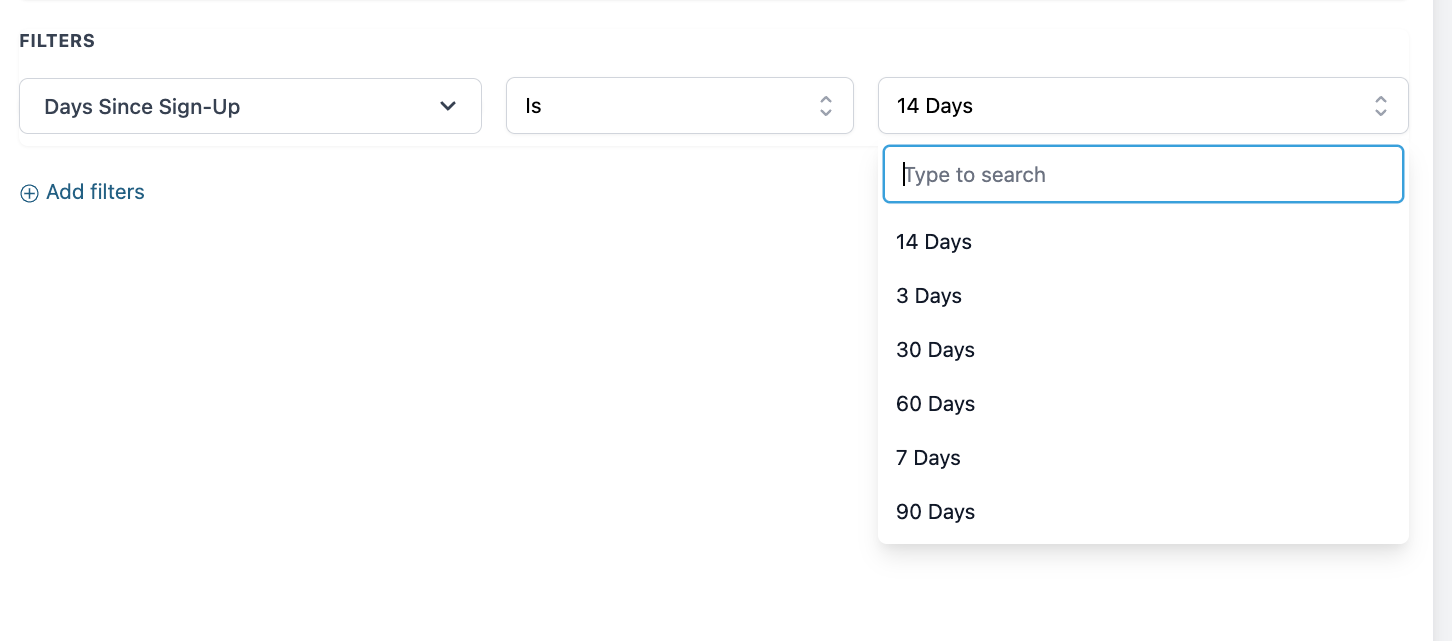
Business logic note: The trigger evaluates days_since_signup >= configured_threshold. If today is Day 8 and the threshold is 7 days, the trigger fires. If the account crosses the threshold while the workflow is already active, it will be picked up in the next nightly cycle.
Feature (Required)
Selects which features to monitor. The trigger fires if any one of the selected features has zero assets. You can monitor all features or narrow it down to the ones that matter most for your product model.
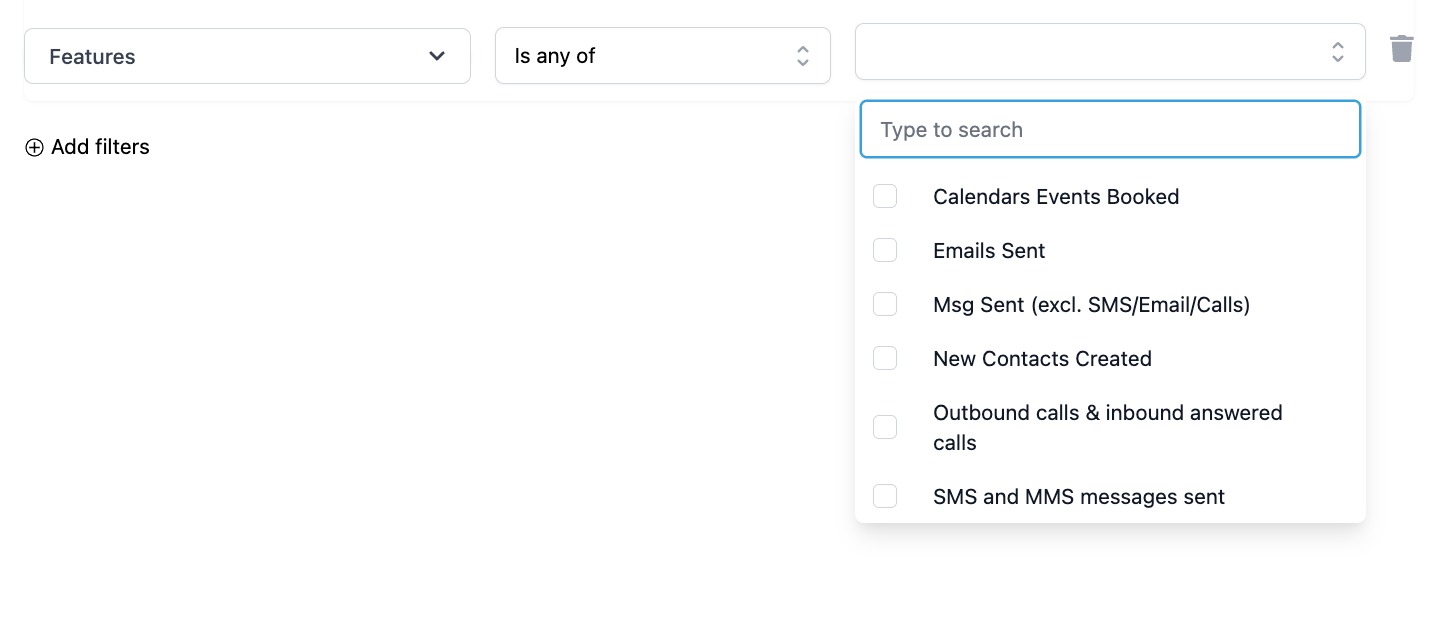
Available options: Contacts, Workflows, Conversations, SMS, Email, Phone, Calendars, Payment
The {{feature.empty_features}} output variable lists only the features that are actually empty — so even if you select all 8, the payload reflects the real state of the account.
Tip: Create separate workflows for different feature priorities. One workflow for high-stakes features like Workflows and Phone with a 7-day threshold and CSM notification, and another for lower-priority features with a 30-day threshold and a self-service email.
Revisit the Trigger After (Required)
Controls whether the trigger can fire again if the sub-account still has zero assets after the initial fire.
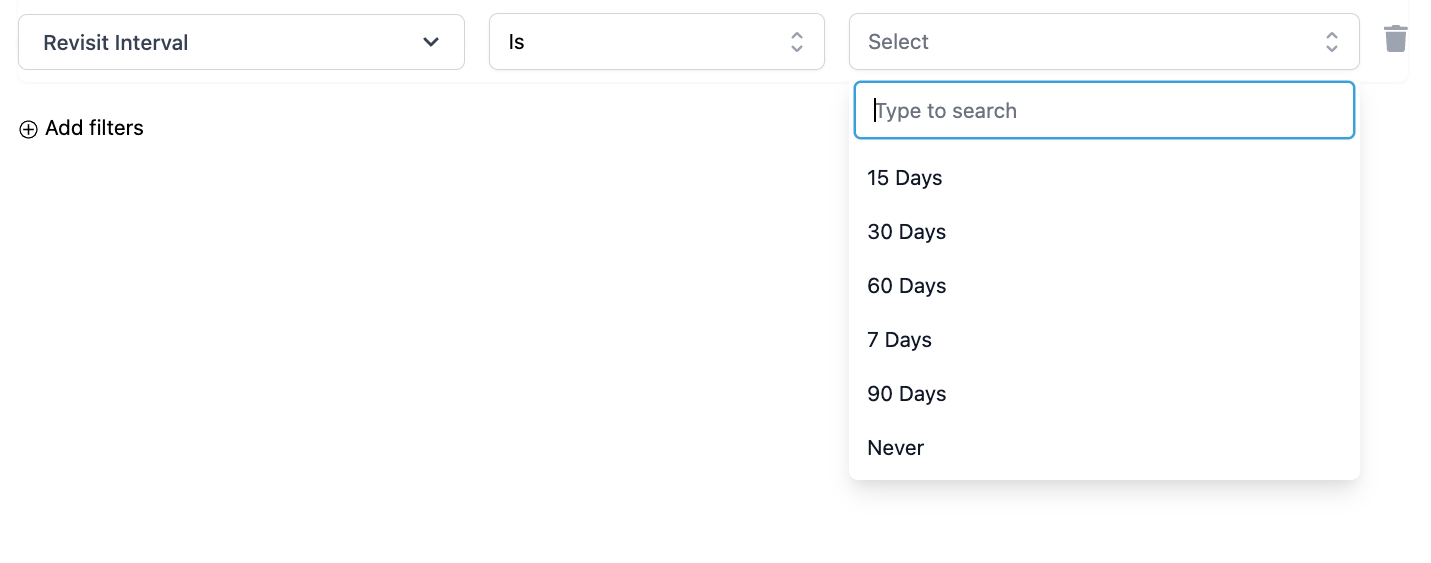
How revisit works: If the trigger fires on Day 7 with a 30-day revisit window, the next evaluation happens on Day 37. If at least one selected feature still has zero assets at that point, the trigger fires again. If all features now have assets, it is suppressed.
Building an escalation ladder with revisit:
Day 7 fire → send a gentle onboarding email to the sub-account owner
Day 37 (30-day revisit) → create a CSM task for manual outreach
Day 67 (second revisit) → flag the account as high-risk
Set Never if you only want to fire once and handle all escalation logic within a single workflow branch.
Sub-account Priority (Optional)
Filters the trigger to only sub-accounts with the selected priority level. Leave this blank to include all accounts regardless of priority.
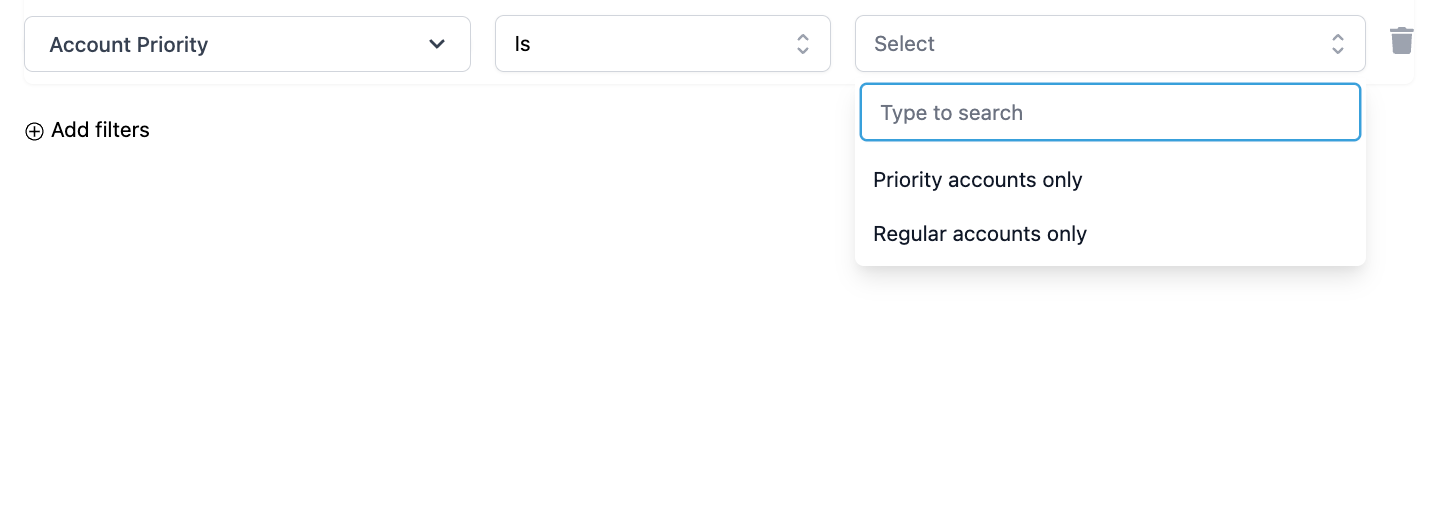
Available options: High, Medium, Low
Use this to build priority-specific workflows. A High Priority account with zero assets after 7 days may warrant immediate CSM involvement, while a Low Priority account after 30 days might get a self-service email sequence.
SaaS Plan (Optional)
Filters the trigger to sub-accounts on specific SaaS plans. Values are pulled dynamically from your configured plans. Leave this blank to include all plans.
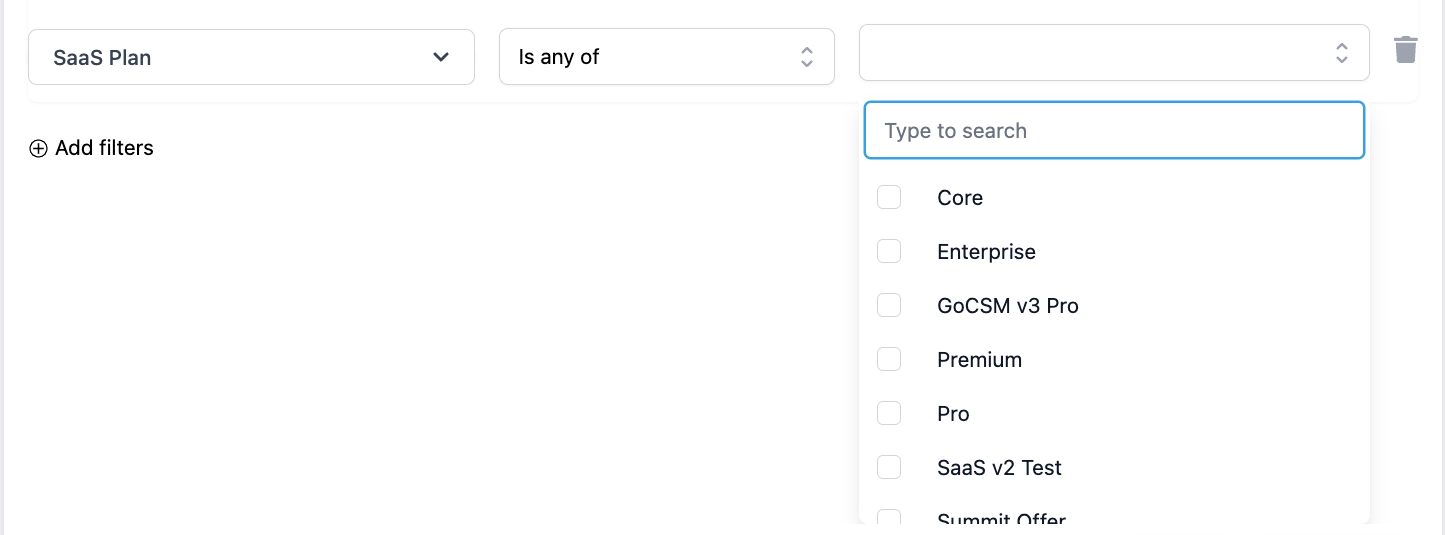
Use this to align intervention logic with your commercial model. A client on your top-tier plan with no activity after 7 days is a very different situation than a client on a trial or entry-level plan.
Output Variables
All variables are available in downstream workflow actions using handlebar syntax.
Account Context
Account Owner Context
Feature Context
Using these variables effectively:
Use
{{feature.empty_features}}in email or SMS body copy to personalize the message — "We noticed you haven't set up Workflows or Calendars yet."Use
{{feature.empty_count}}in an If/Else branch to route based on severity. Ifempty_count > 3, escalate to a CSM task. Ifempty_count = 1, send a targeted self-service nudge.
How to Build a Workflow Using This Trigger
Create a new workflow in GHL
Select Feature Assets is Empty Since Sign-Up as the trigger
Set the Days Since Sign-Up filter to your desired threshold
Select the Features you want to monitor
Set the Revisit the Trigger After window (or select Never for a one-time fire)
Optionally apply Sub-account Priority and SaaS Plan filters to narrow your audience
Add your workflow actions — emails, internal notifications, CSM tasks, tags
Publish the workflow
Recommended Uses
Early onboarding alerts — Fire at 7 days to catch accounts that never got started, before they go cold
Priority account escalation — Filter to High Priority accounts and route directly to a CSM when zero assets are detected
Feature-specific nudges — Select individual features like Phone or Calendars and send setup guidance tailored to that specific gap
Tiered intervention by SaaS plan — Build separate workflows per plan tier with different thresholds and response types
Escalation ladders — Use the Revisit filter to re-fire and increase intervention intensity if the first touchpoint had no effect
Churn risk flagging — Use
{{feature.empty_count}}to tag or score accounts based on how many features are still empty at the revisit window
Was this helpful?
Still need help? Ask the team