Team Connect & CSM Filter
Written By GoCSM Team
Last updated 3 months ago
Team Connect & CSM Filter lets you assign your client sub-accounts to specific team members, then filter any GoCSM dashboard down to just the accounts each person owns. Once it's set up, it gives you visibility into:
• Who owns which sub-accounts across your agency
• Who on your team is designated as a Customer Success Manager (CSM)
• How each CSM's portfolio is performing: health, coverage, and revenue
• Which accounts still need an owner assigned
Why It Exists
As your agency grows past a handful of clients, account ownership stops being obvious. By default, every team member sees every sub-account, and knowing who's actually responsible for a given client often lives in a spreadsheet, or in someone's memory. Team Connect gives every person on your team a clear, filtered view of only the accounts they own, so you can:
• See coverage at a glance: how many accounts have an owner and how many don't
• Compare CSMs' portfolios side by side, using health, MRR, and activity
• Reassign accounts in bulk when a CSM leaves or workloads shift
• Keep your dashboards useful and focused as your account count grows
What It Solves
For Agency Owners & Managers
"How is each CSM's portfolio actually doing?" → Filter any dashboard by CSM and compare.
"How many accounts still don't have an owner?" → Check the Needs Attention stat on the Team Connect home screen.
"A CSM just left. How do I reassign their accounts?" → Bulk reassign every account from the Assignments tab in under two minutes.
For Customer Success Managers
"I only manage 30 of 300 accounts. How do I skip the rest?" → Apply the CSM filter to your name on any dashboard.
"Which of my accounts genuinely need attention today?" → Account Health only flags accounts that are truly low-scoring by default.
For Agency Admins
"How do I designate someone as a CSM?" → One click in the Users tab, with nothing to submit or configure.
"How do I assign a batch of accounts at once?" → Select multiple accounts in Assignments and bulk-assign them from the action bar.
Who Should Use Team Connect
• Agency Owners & Managers, for team-wide visibility, portfolio comparisons, and coverage tracking
• CSMs, for a focused, day-to-day view of only the accounts they manage
• Agency Admins, for tagging CSMs, assigning accounts, and handling reassignments during offboarding
Getting Started with CSM Assignment
Turn on the feature, tag your team as CSMs, and assign each sub-account to its rightful owner.
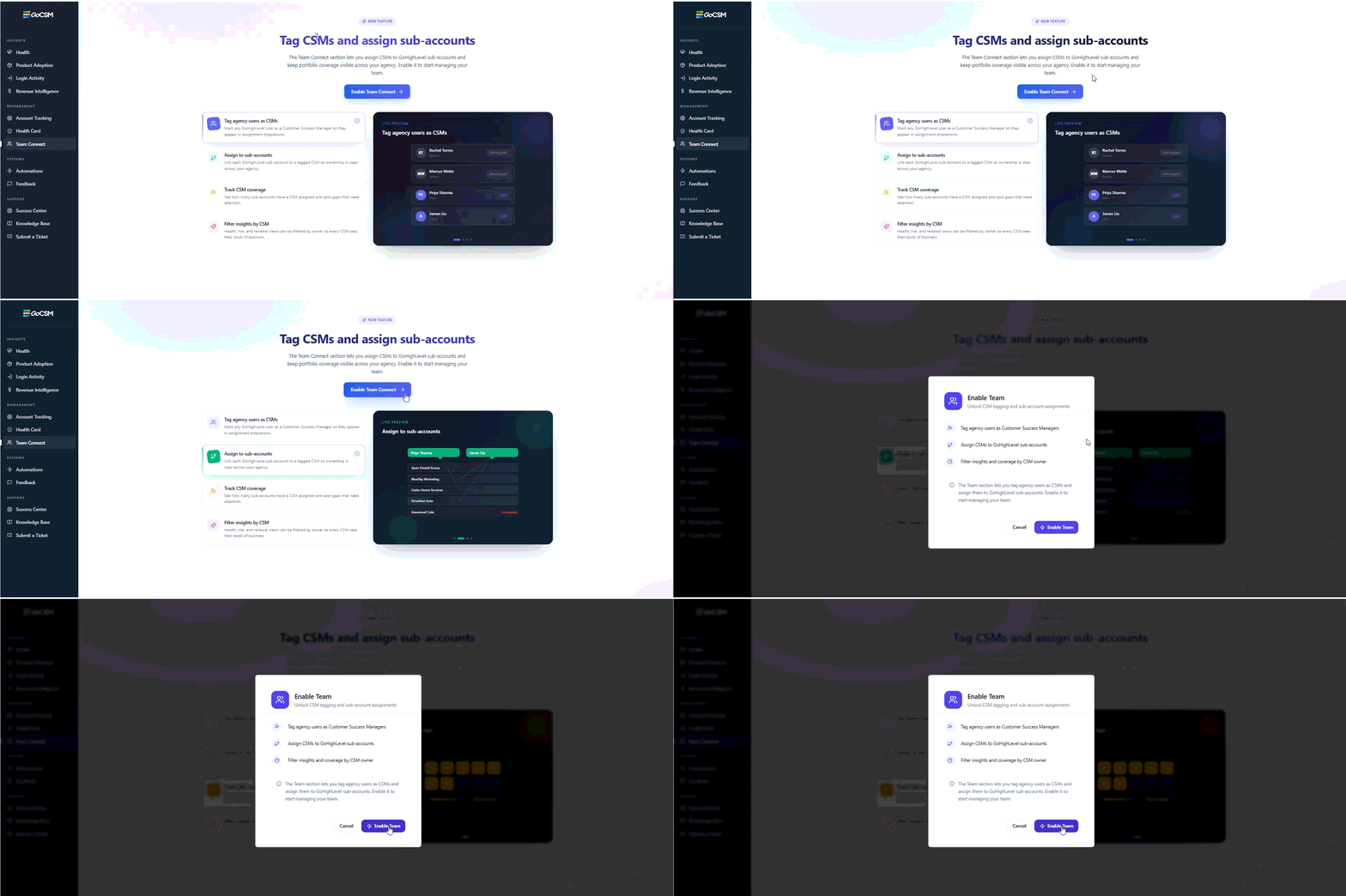
Step 1: Enable Team Connect
• Team Connect is off by default. The first time you open it, you'll see a short preview of what it does before you turn it on.
• Turning it on or off requires a quick confirmation, so it always happens intentionally.
• Disabling Team Connect doesn't delete anything. Your CSM tags and account assignments are saved and will be exactly as you left them if you turn it back on.
Step 2: Tag Your Team as CSMs
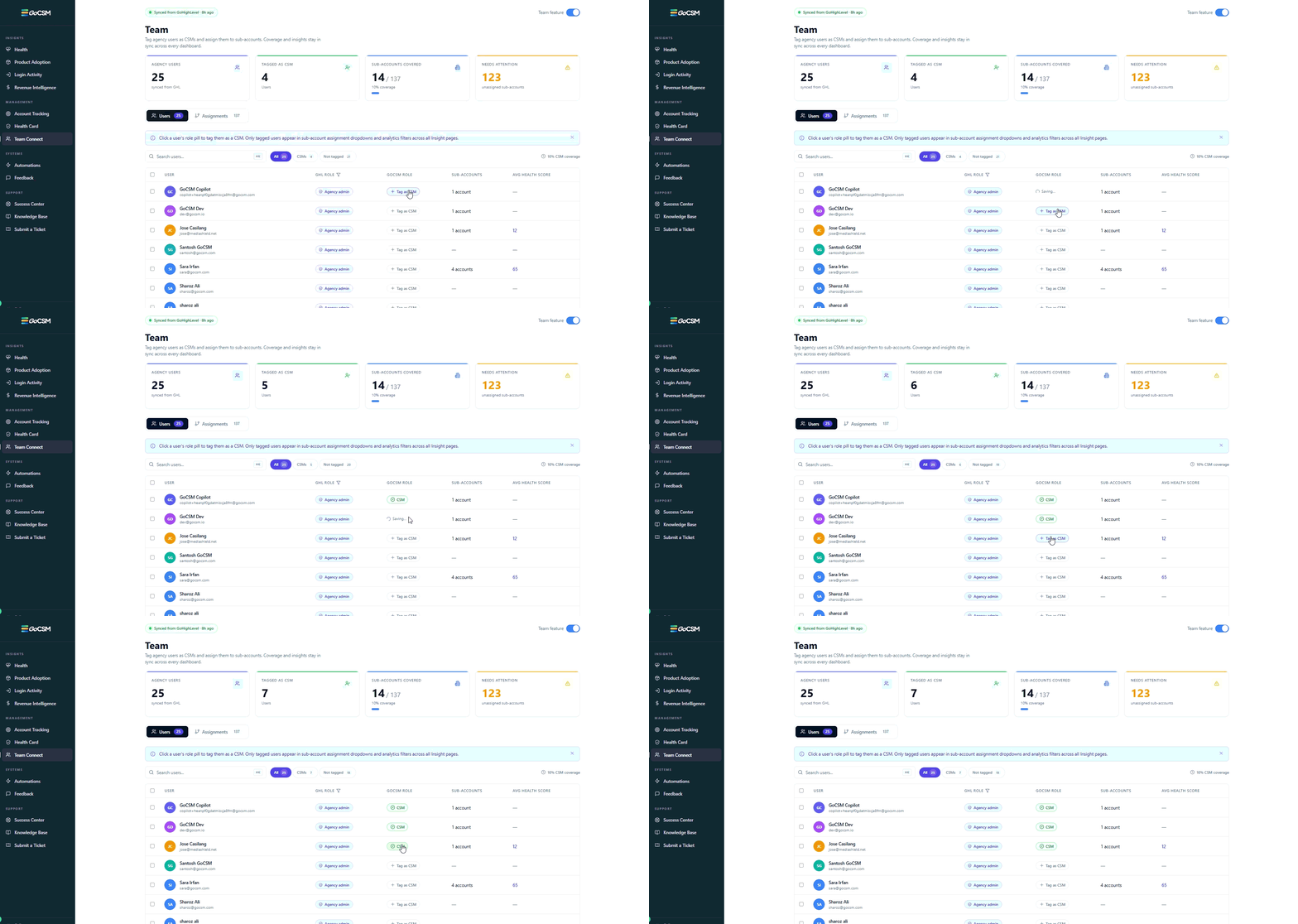
Head to the Users tab to choose which team members are Customer Success Managers. Only tagged users can be assigned accounts and appear in the CSM filter.
• Tag anyone as a CSM with a single click on their GoCSM Role button. It saves instantly, with nothing to submit.
• Search by name or email to find a specific team member quickly.
• Filter the list by All, CSMs only, or Not tagged yet.
• Select multiple team members and tag them all as CSMs in one bulk action.
Step 3: Assign Sub-Accounts to CSMs
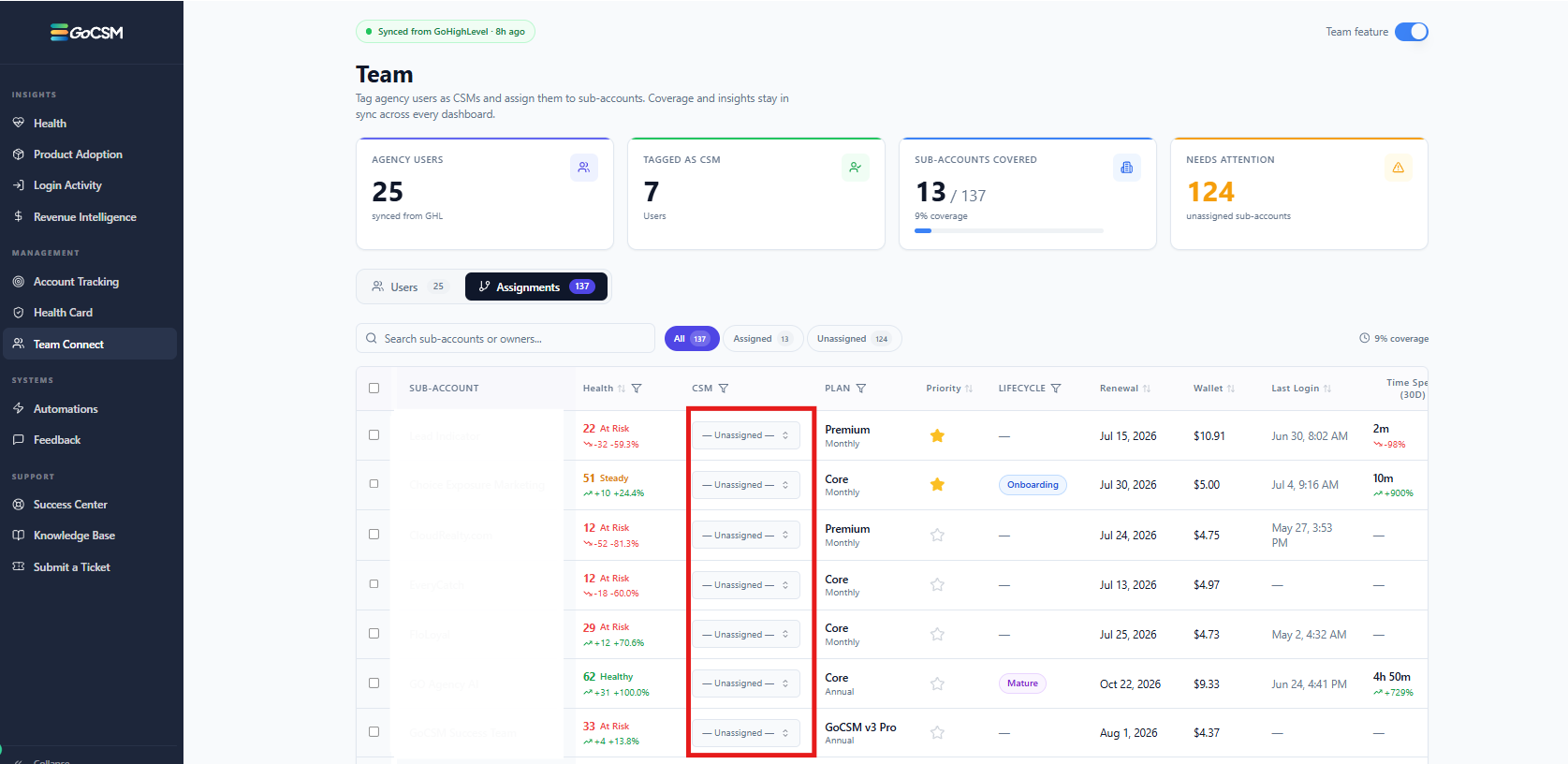
Head to the Assignments tab to connect each sub-account to a CSM.
• Assign a CSM from the dropdown on any account's row. It saves immediately.
• Remove an assignment at any time by selecting "Unassigned" from the same dropdown.
• Search accounts by name or owner, and filter the list by assignment status: All, Assigned, or Unassigned.
• Filter by health, CSM, plan, or lifecycle stage. You can combine multiple filters at once.
• Select multiple accounts and assign them all to one CSM in a single action, ideal when a CSM leaves or territories change.
Your Workspace, At a Glance
Four summary cards sit at the top of the Team Connect workspace and update automatically as you make changes.
Using the CSM Filter on Your Dashboards
Once accounts are assigned, scope any dashboard down to one or more CSMs' accounts in a click.
Where the Filter Appears
A CSM filter button appears in the top-right corner of four GoCSM dashboards:
How the Filter Button Behaves
Using the Filter
• Click the button to open a dropdown of all your tagged CSMs.
• Search within the dropdown to find a specific CSM quickly.
• Select one or more CSMs. The dashboard updates instantly to show only their accounts.
• Click the X to clear the filter and return to the full view.
• Use "Clear all" inside the dropdown to deselect everyone at once.
More Accurate Health Alerts
In Account Health, the "Accounts Requiring Attention" section only surfaces accounts with a genuinely low health score (70 or below). If a CSM's entire portfolio is healthy, the section will simply say "No accounts need attention right now," giving you an honest read on the portfolio.
A Day in the Life
Sarah starts her Monday → she filters Account Health to her name and immediately sees her 28 accounts, 3 of them in the red, without scrolling past hundreds that aren't hers.
An agency owner runs a team review → they filter Revenue Intelligence by each CSM in turn, comparing MRR and portfolio health without exporting a single spreadsheet.
A CSM leaves the company → an admin filters the Assignments tab by that CSM's name, selects every account, and reassigns them all in under two minutes.
Good to Know
A few things worth understanding about how Team Connect works today.
The Filter Changes Your Own View
Applying a CSM filter narrows what you personally see on your dashboard. Any team member can still see every account by clearing the filter.
The Filter Doesn't Carry Over Between Sessions
The CSM filter resets when you refresh the page or navigate away. If you'd like the same filtered view each day, you'll need to reapply it each time you log in.
Accounts Aren't Assigned Automatically
New and existing sub-accounts are never assigned to a CSM on their own. An owner, manager, or admin assigns ownership manually.
Untagging a CSM Doesn't Clear Their Accounts
If you remove someone's CSM tag, the accounts already assigned to them stay assigned. They just won't be available for new assignments going forward. To free up those accounts, reassign them from the Assignments tab.
The Attention Threshold Is Fixed
Accounts appear in "Accounts Requiring Attention" once their health score falls to 70 or below. This threshold currently applies the same way across all agencies.
There Are No Notifications Yet
CSMs aren't currently notified when an account is assigned to them or when one of their accounts' health changes. Team Connect focuses on assignment and filtering today, with alerts planned for the future.
Newly Activated Accounts Show Limited Data at First
Accounts that haven't fully completed setup still appear in the Assignments tab and can be assigned a CSM right away. Their health score and revenue figures will populate once setup is complete.
Frequently Asked Questions
Quick answers to the questions we hear most from customers.
If I filter a dashboard by CSM, can other team members still see the accounts I've filtered out?
Yes. The CSM filter only changes your own view. It doesn't hide accounts from anyone else or change what any team member is able to see.
If I disable Team Connect, do I lose my CSM tags and assignments?
No. Disabling Team Connect only hides the feature. Your tags and assignments are saved and will be exactly as you left them if you turn it back on.
Does assigning a CSM to an account change who has login access to that sub-account?
No. CSM assignment is an ownership label inside GoCSM only. It has no effect on GoHighLevel permissions or who can log in to a sub-account.
Can an account have more than one CSM?
Not currently. Each sub-account can be assigned to exactly one CSM at a time. Assigning a new CSM replaces the previous one.
Was this helpful?
Still need help? Ask the team