Sub-Accounts Tab
Written By Sara Irfan
Last updated 5 months ago
The Sub-accounts tab is where you manage and review every single client account in your agency, all in one scrollable table. The Overview tab gives you the big picture, this tab gives you the details.
Think of it like a spreadsheet that automatically stays up to date, with built-in tools to filter, sort, flag, and take action on your clients without switching between different tools.
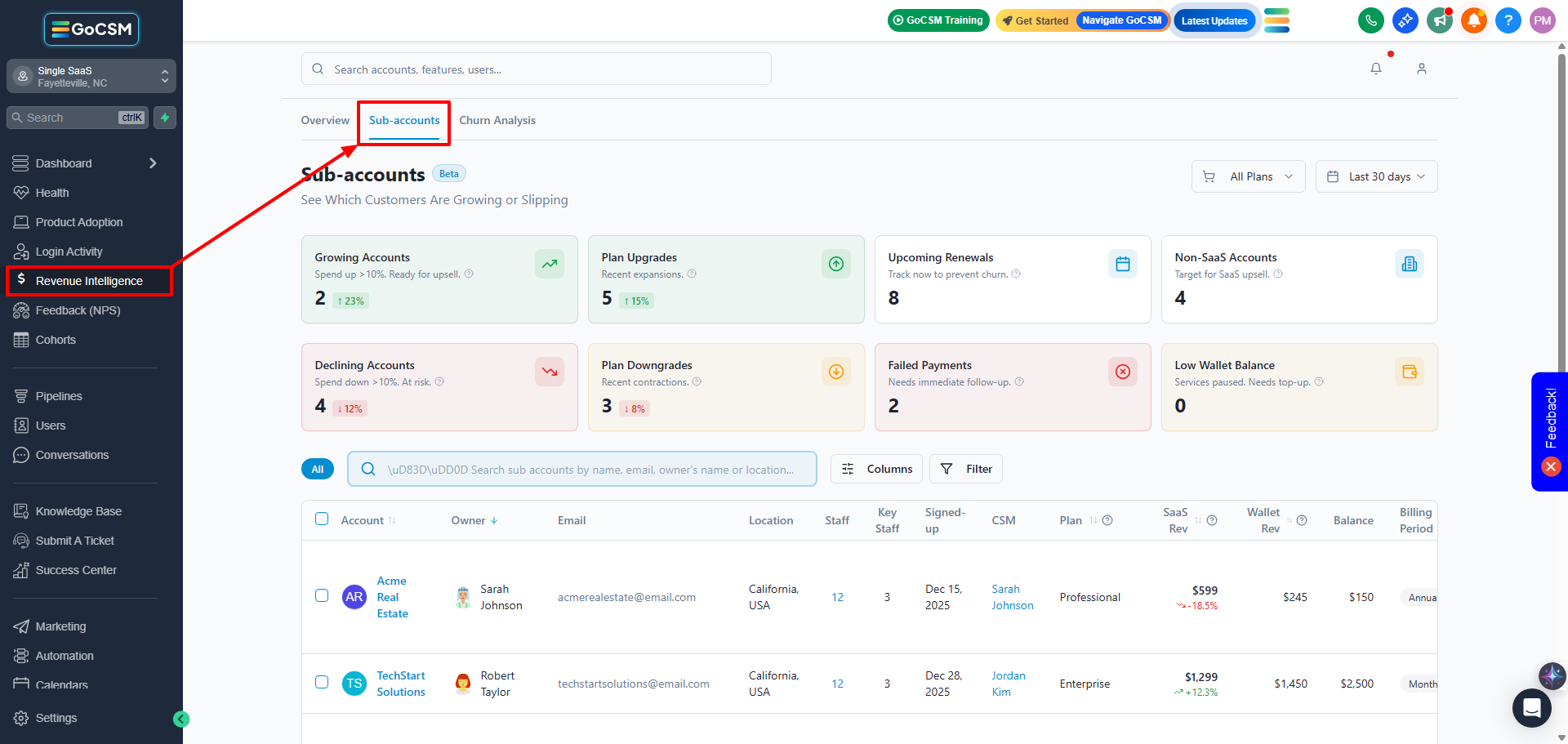
The Signal Cards at the Top

Just like on the Overview tab, you'll see eight quick-summary cards at the top of the Sub-accounts tab. These count how many of your accounts fall into each category right now:
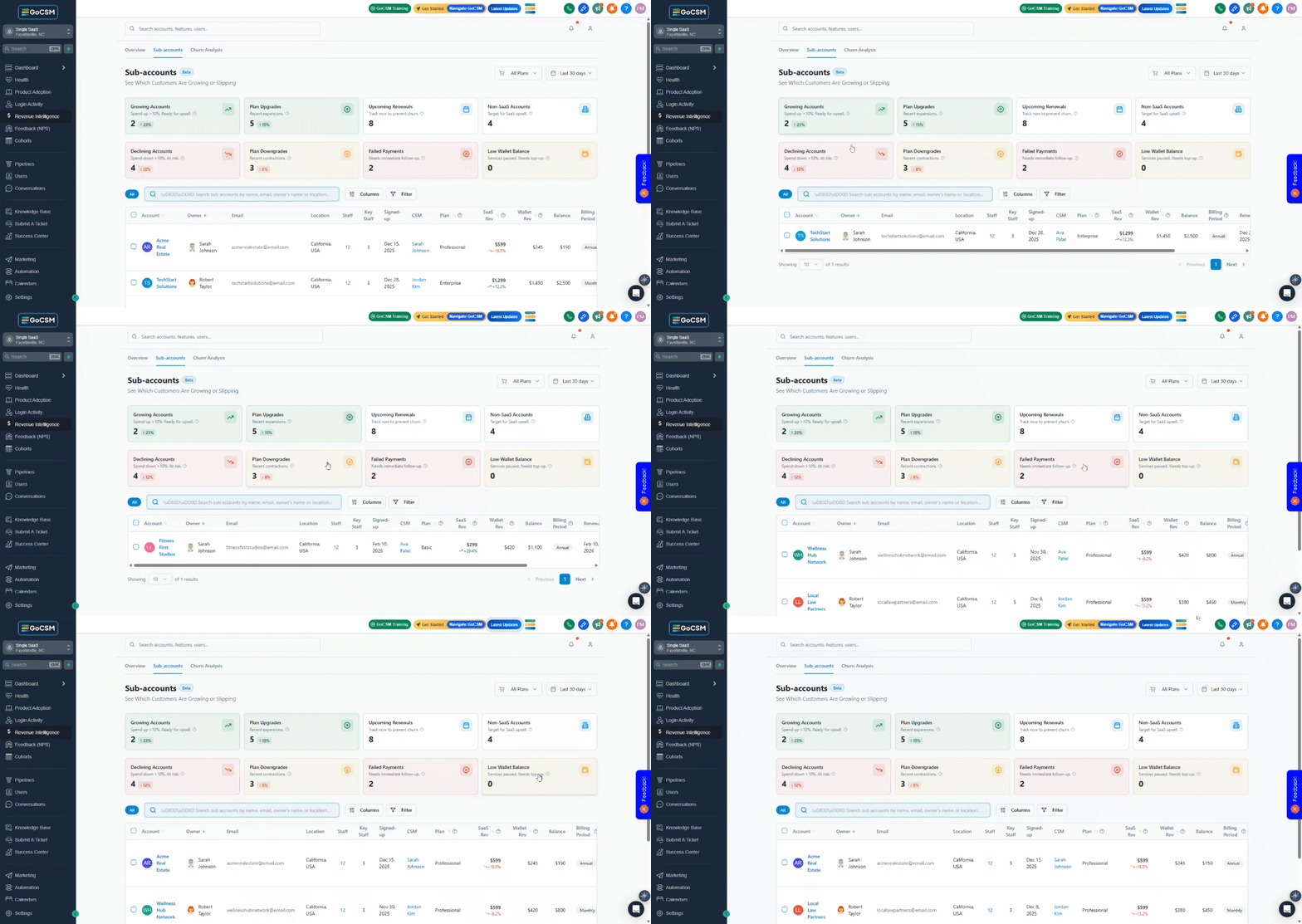
Clicking any card instantly filters the table below to show only the accounts matching that category. It's the fastest way to build a focused worklist.
The Account Table: Reading Each Row
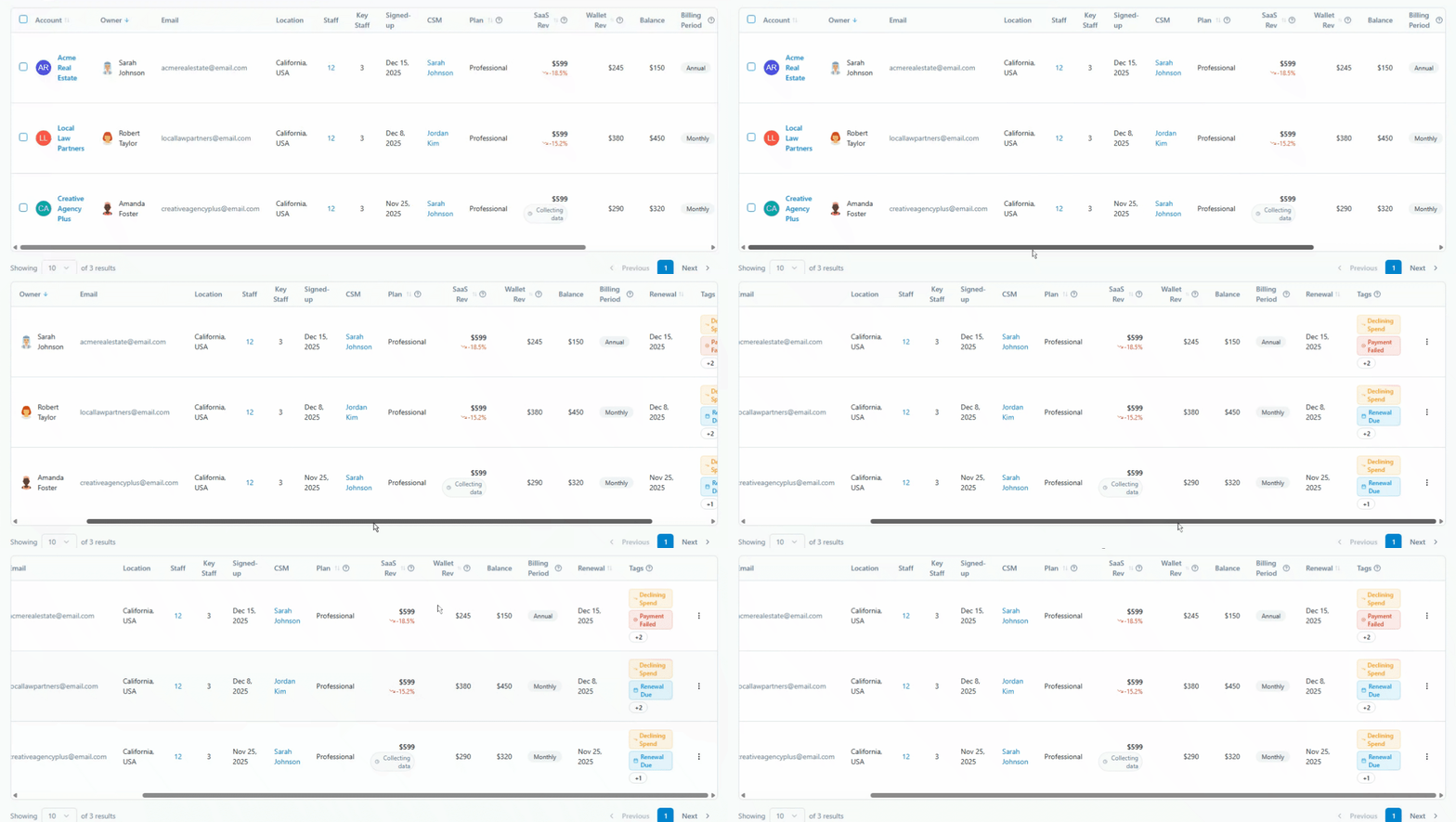
The main feature of this tab is the table showing all your sub-accounts. By default, each row shows:
What Are Tags?
Tags are colored labels that appear automatically on accounts based on their behavior. You don't add or remove them manually. The system applies and updates them in real time.
Searching and Filtering
When you have dozens or hundreds of accounts, the search and filter tools help you quickly find what you're looking for.
Search Bar
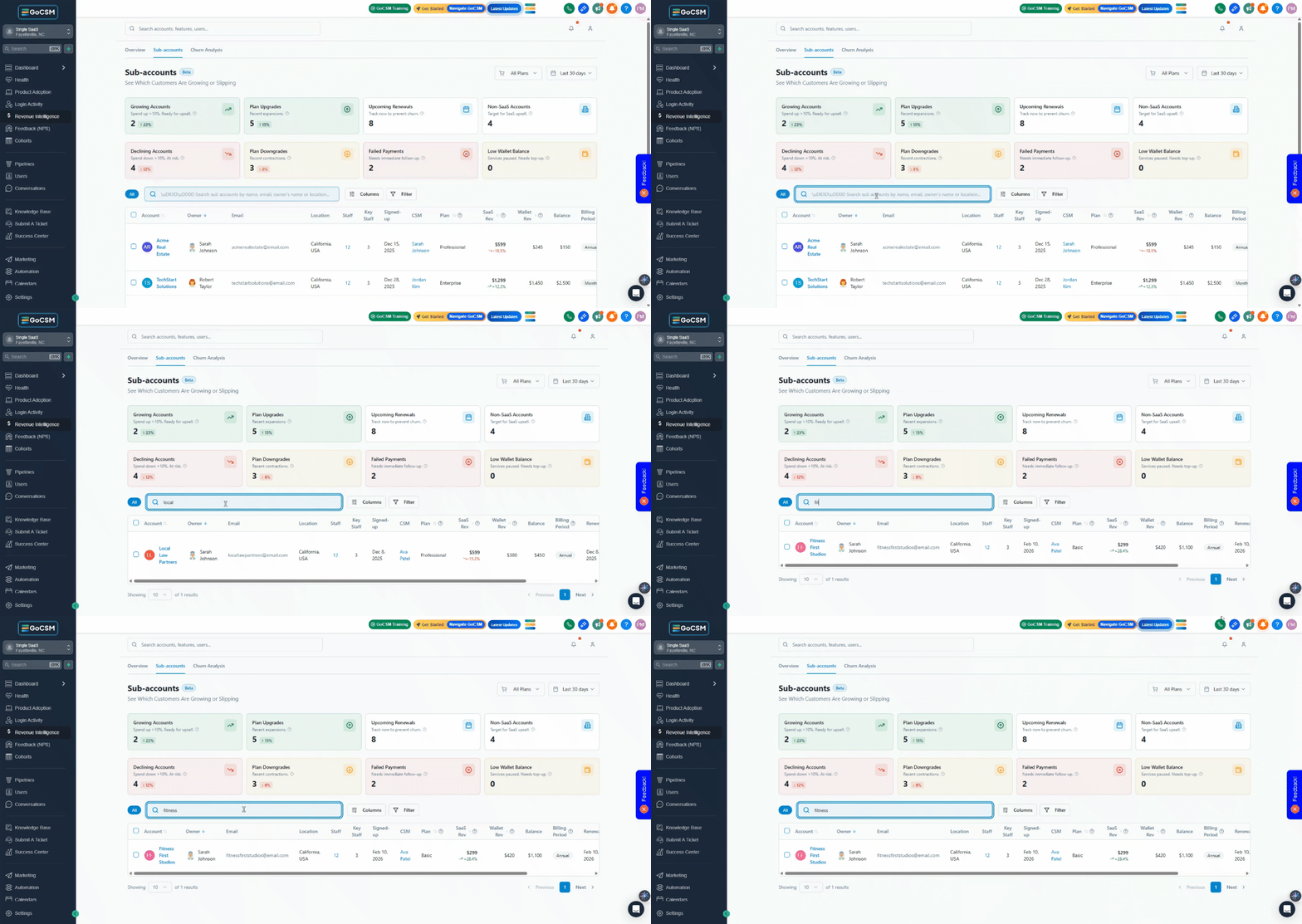
Type any part of an account name or account ID into the search bar at the top of the table. Results update as you type (with a brief half-second delay to keep things smooth).
Filter Button
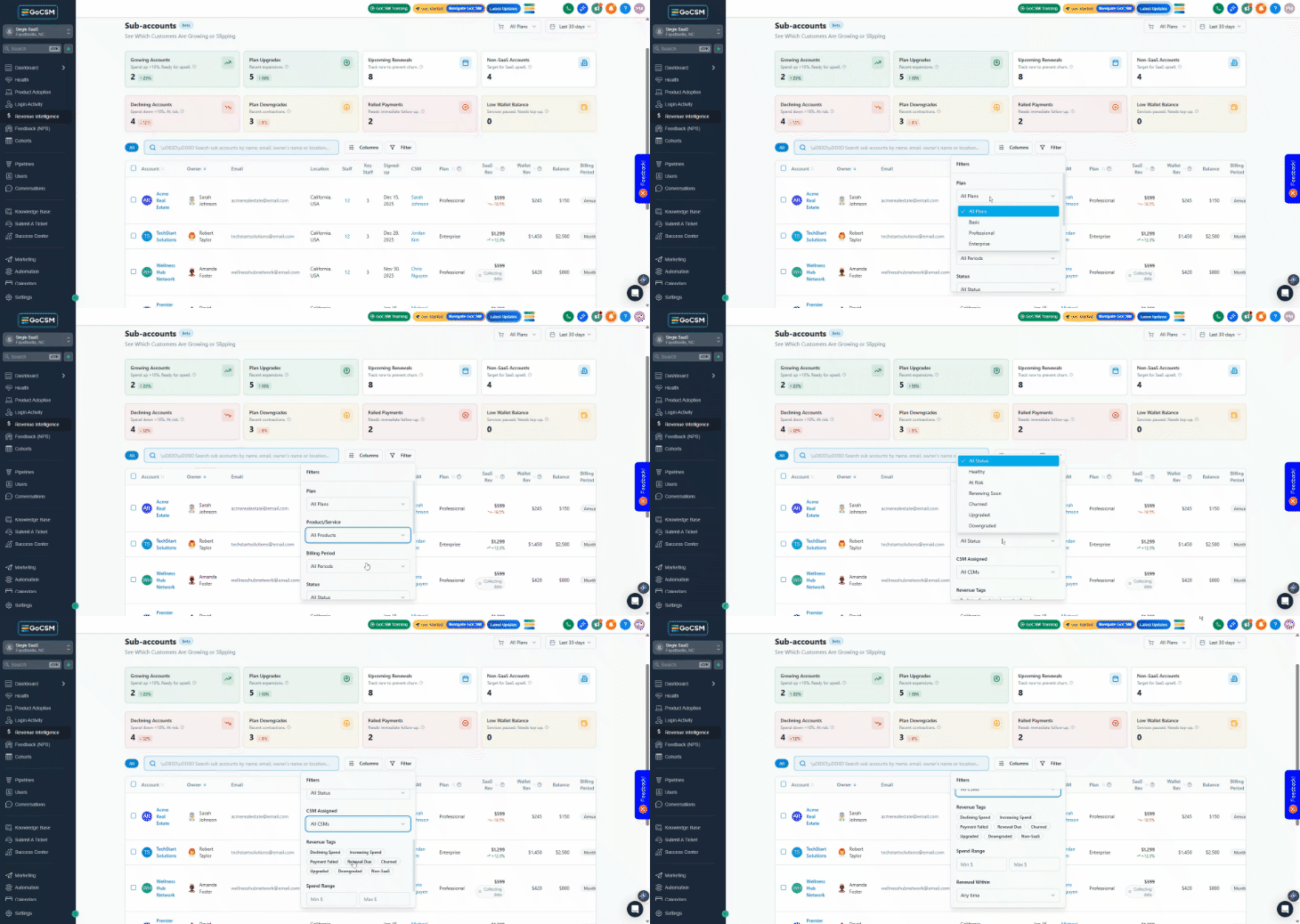
Click the Filter button to open additional filtering options:
Plan: Show only accounts on a specific pricing tier (e.g., only 'Premium' accounts).
Product: Filter by which products an account uses (calls, SMS, email, AI, etc.).
Billing Period: Choose between monthly or annual subscription accounts.
Revenue Tags: Click one or more tags to show only accounts with those flags.
Renewal Date: Show accounts with renewals coming up in the next 7, 14, 30, 60, or 90 days.
Active filters appear as small badges below the search bar. To remove a filter, click the X on its badge, or use 'Clear all' to reset everything at once.
All filters work together, so if you filter by Plan = 'Premium' AND Tag = 'Payment Failed', you'll only see Premium accounts that also have a failed payment.
Sorting the Table
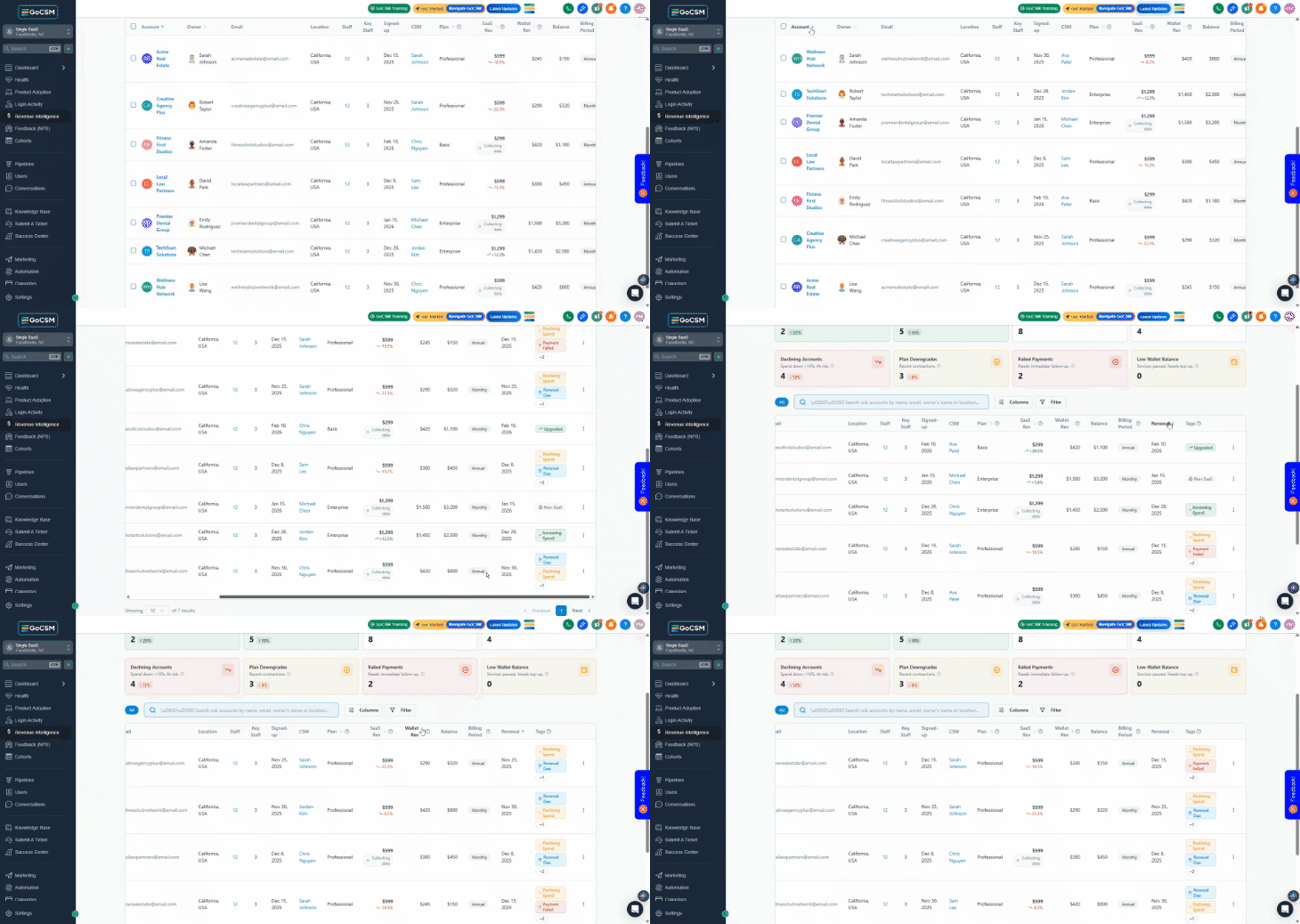
Click any column header to sort the table by that column. Clicking once sorts from lowest to highest (A to Z, or smallest to largest). Clicking again reverses the order. Clicking a third time removes the sort.
This is useful for quickly finding, for example, your highest-margin accounts, or the accounts with the earliest renewal dates.
Adding or Hiding Columns
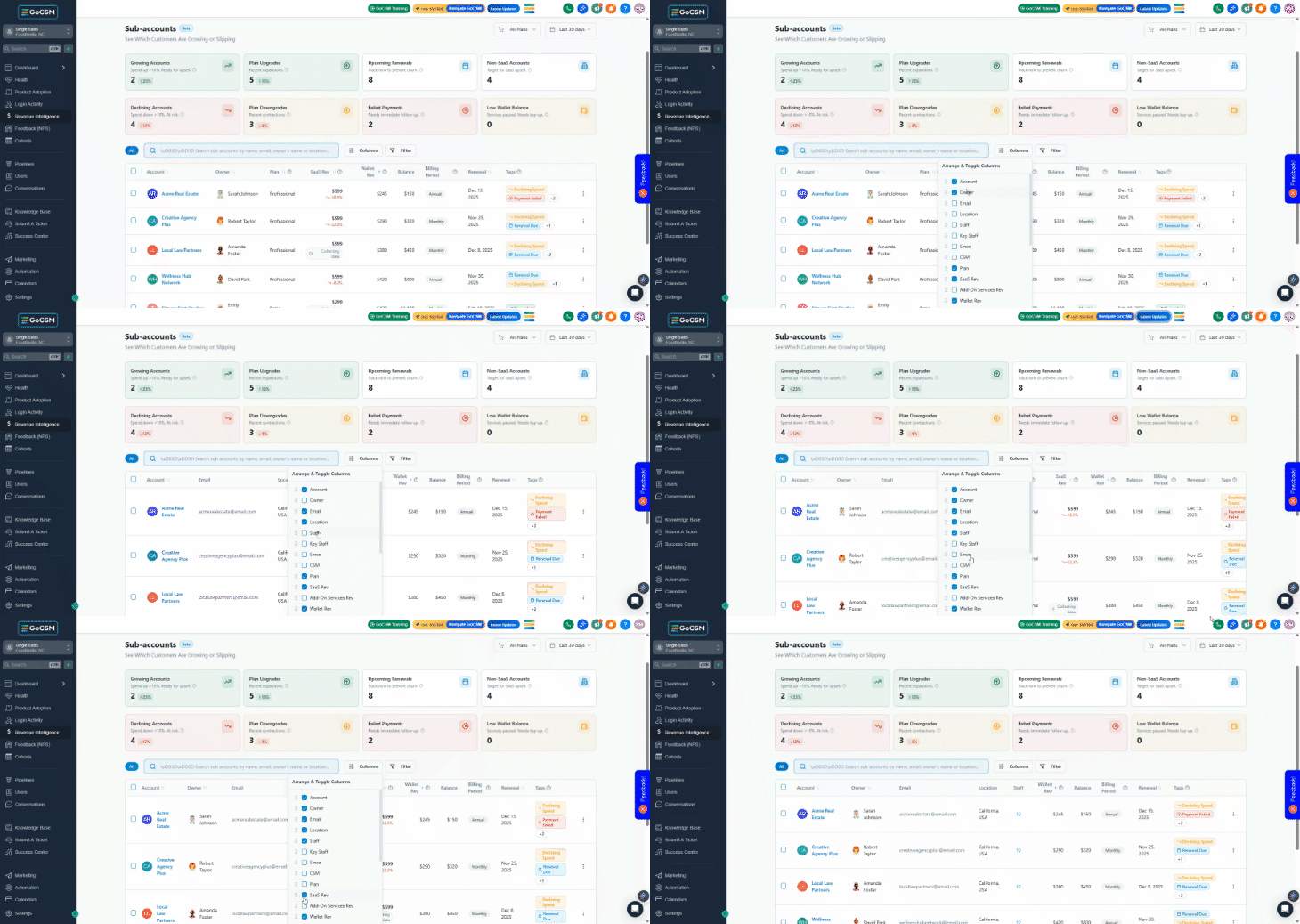
The table comes with a default set of columns, but you can customize what you see. Click the Columns button to show or hide additional fields such as:
Contact email address
Business location
Number of staff
SaaS billing period (monthly vs annual)
Wallet balance
Your column preferences are saved automatically in your browser, so the table remembers your layout the next time you visit.
Taking Action on Accounts
The Sub-accounts tab isn't just for viewing data. You can act on it directly.
Opening an Account
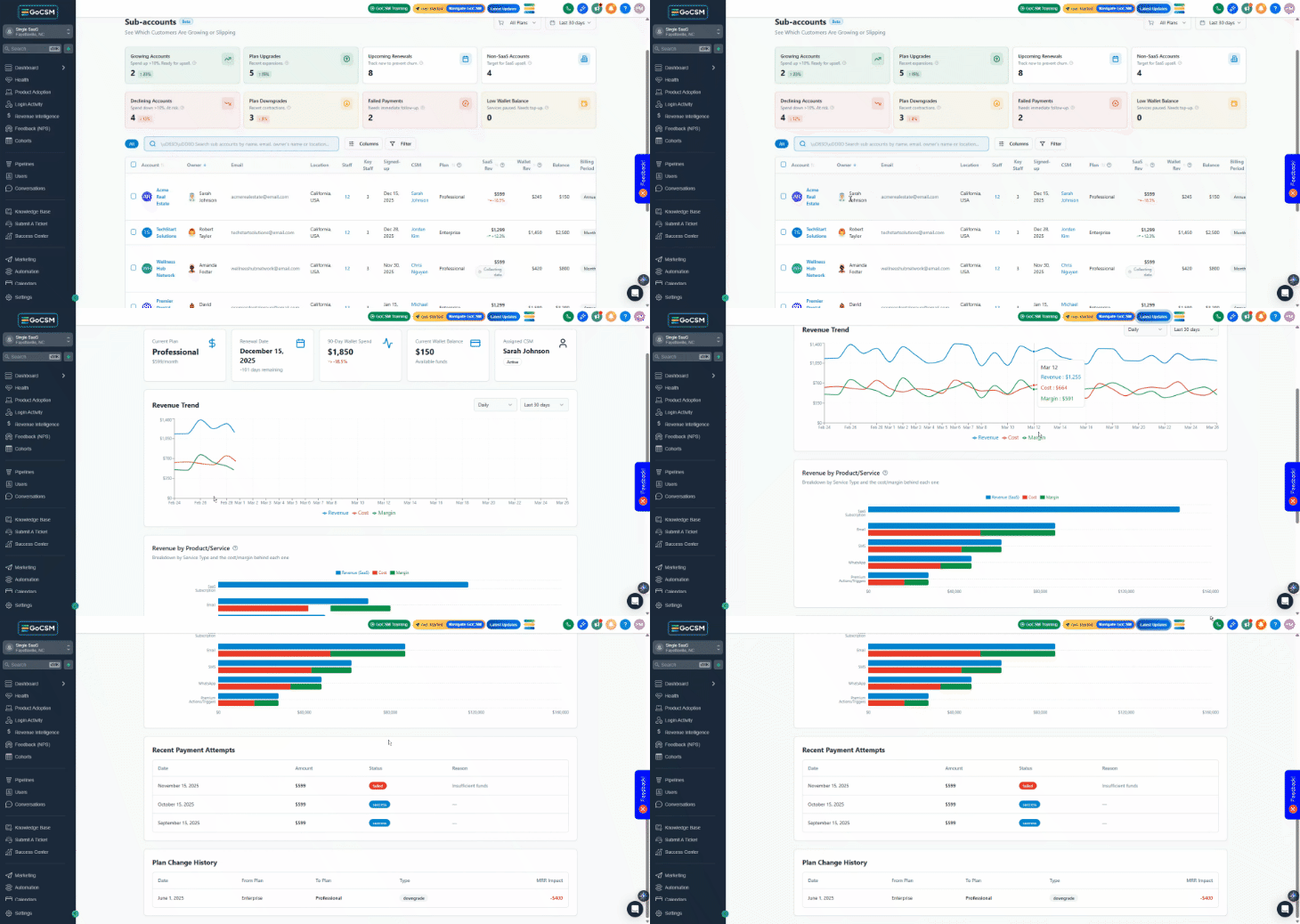
Click any account name to open its full detail page, which shows payment history, plan change history, a financial chart, and more.
Bulk Actions
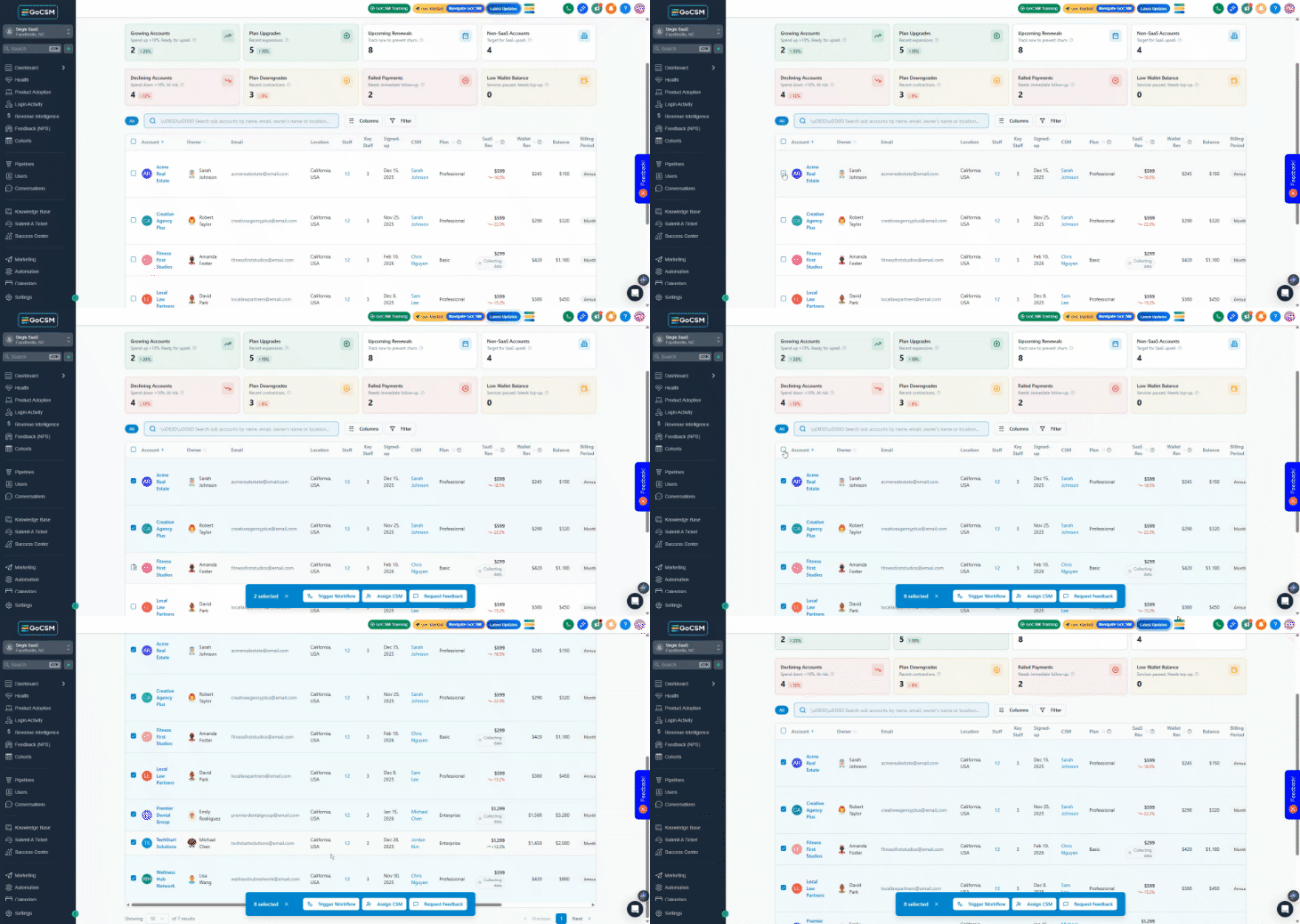
You can select multiple accounts using the checkboxes on the left of each row. Once you've selected accounts, a bar appears at the bottom of the screen with two options:
Trigger Workflow: Launch a GoHighLevel automation for all selected accounts at once. Useful for sending outreach campaigns, follow-up emails, or tasks to your team.
Request Feedback: Enable a feedback widget for selected accounts to collect customer satisfaction data.
The selection bar shows how many accounts you currently have selected. Use the header checkbox to select all visible accounts at once.
Exporting Your Data
Need to share the data with someone or analyze it in a spreadsheet? Click the Export button to download a CSV file containing all the accounts currently visible (based on your active filters and selected columns).
The file is named with today's date and opens easily in Excel or Google Sheets. Only the columns you have visible will be included, so configure your view before exporting.
Pagination
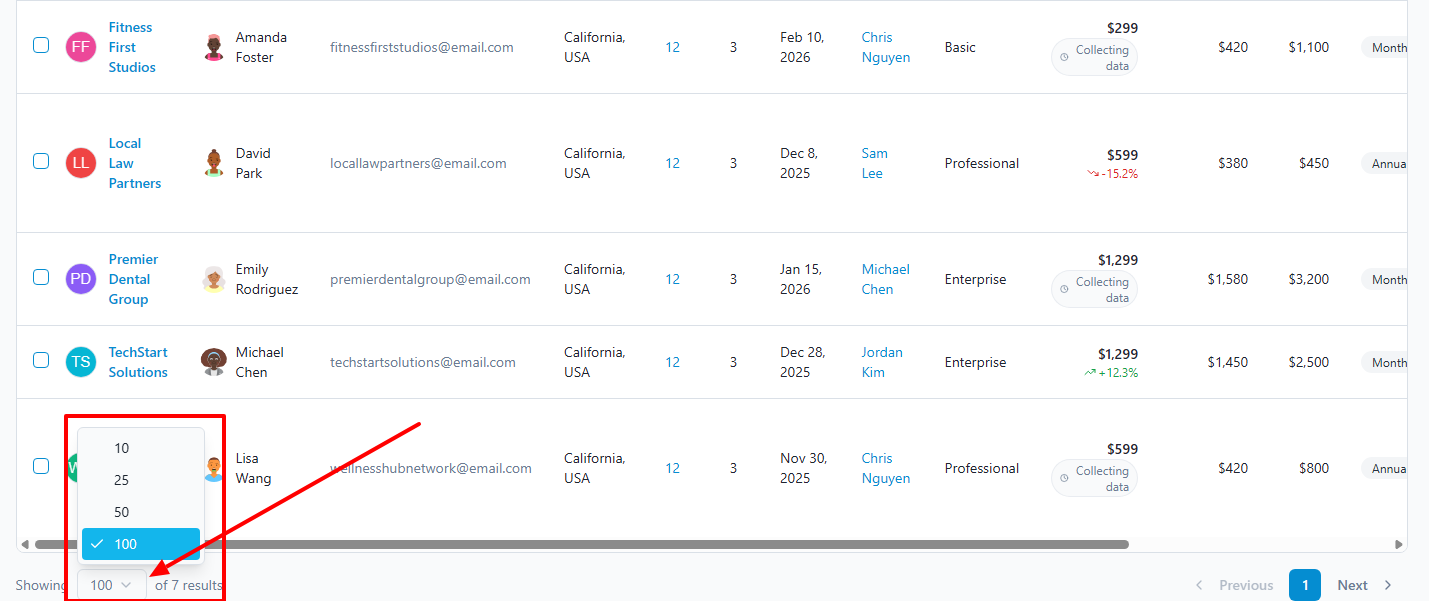
If you have many accounts, they're split into pages. At the bottom of the table, you can:
Choose to show 10 or 25 accounts per page.
Navigate between pages using the Previous and Next buttons.
See how many total accounts match your current filters (e.g., 'Showing 10 of 112 results').