Feature Engagement Changed (Trigger)
Written By GoCSM
Last updated 6 months ago
Overview
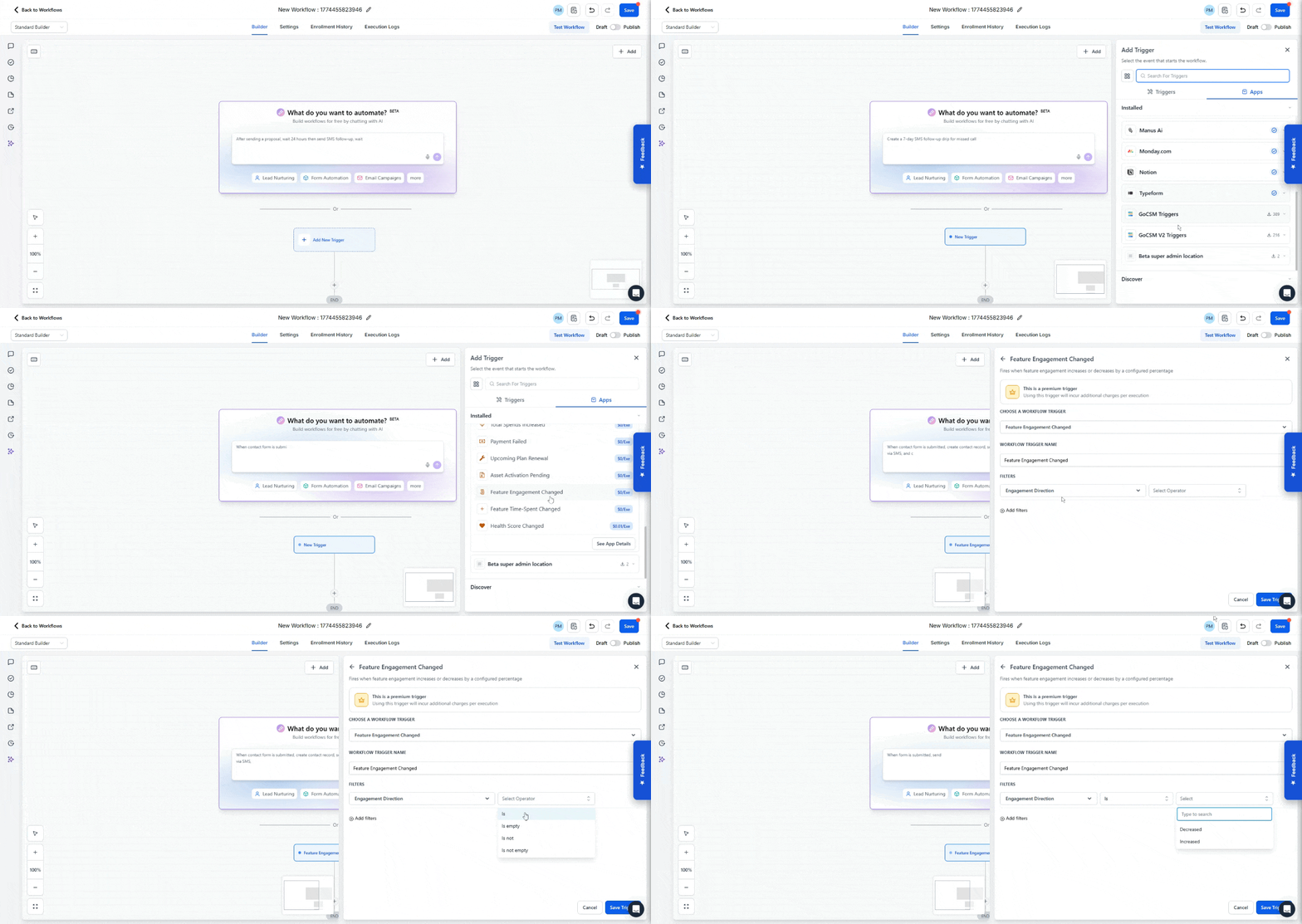
The Feature Engagement Changed trigger activates when a customer’s usage of a feature increases or decreases by a defined percentage.
This helps you track real activity trends and identify changes in customer behavior.
It is useful for spotting both growing engagement and early signs of disengagement.
How the Trigger Works
The trigger compares engagement over time and detects changes based on your configuration.
Once triggered, workflows can:
Alert your team about engagement changes
Send re engagement messages
Trigger upsell or expansion workflows
Trigger Filters
Filters give you precise control over which engagement changes activate this trigger. There is one required Primary Filter and several optional Additional Filters that can be combined to target specific scenarios.
Primary Filter
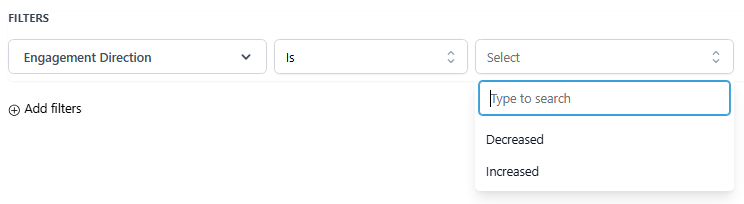
Engagement Direction (Required)
Sets whether the trigger fires on rising or falling engagement
Additional Filters
These filters are optional and can be combined to narrow down exactly which engagement changes qualify and how often the trigger repeats.
Comparison Period
Defines the time window used to measure the change in engagement.
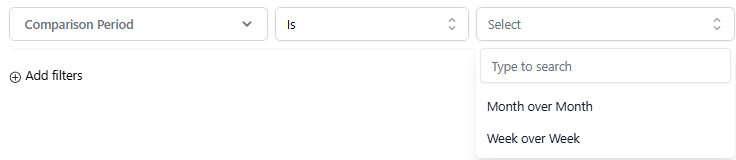
Use Week over Week for faster-moving signals where you want to respond quickly. Use Month over Month for a broader view of engagement trends that smooths out short-term fluctuations.
Features
Limits the trigger to engagement changes on a specific feature. This allows you to build workflows tailored to the feature being monitored.
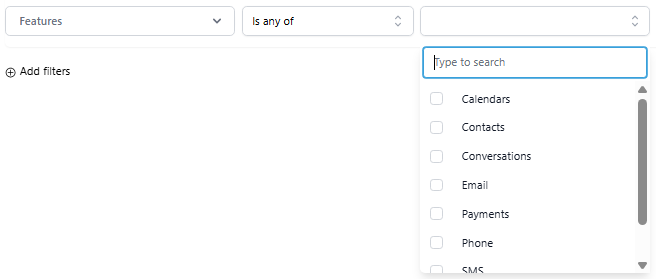
Available options:
Calendars
Contacts
Conversations
Emails
Payments
Phone
SMS
Workflows
For example, you could create one workflow that fires when SMS usage drops significantly, and a separate workflow that fires when payment activity increases. Each with actions specific to that context.
Percentage Threshold
Sets the minimum percentage change required before the trigger fires. This prevents the workflow from activating on minor fluctuations.
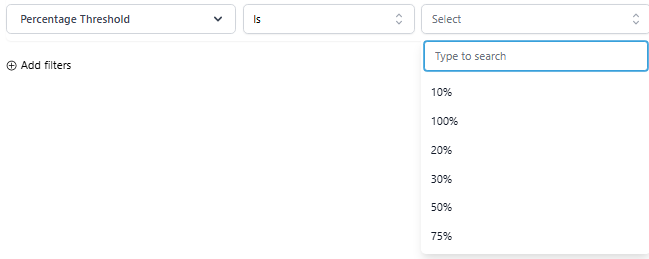
Available values: 10%, 20%, 30%, 50%, 75%, 100%
Use a lower threshold such as 10% or 20% when you want to catch early, subtle shifts in behavior. Use a higher threshold such as 50% or 75% when you only want to act on significant, meaningful changes.
Revisit Interval
Controls how often this trigger can fire for the same account. This prevents repeated activations if the engagement change persists over multiple check periods.
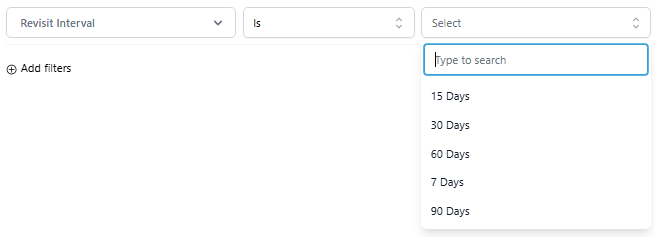
Required Setup: Find Contact Step
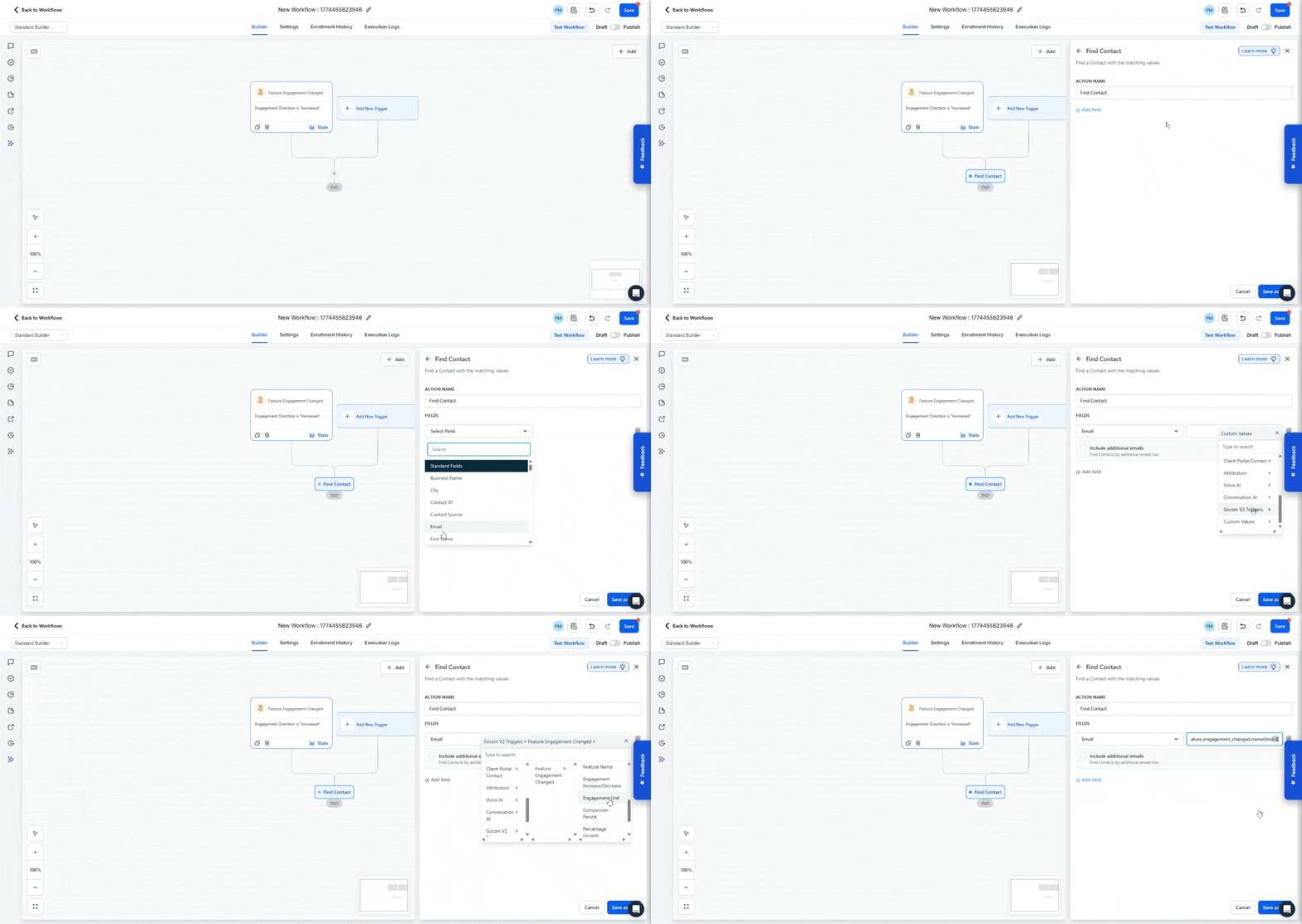
Engagement data comes from your product, so the workflow must map that activity back to a contact in your CRM.
The Find Contact step handles this.
It uses the email provided in the trigger event to find the matching contact.
Example:
Field: Email
Value: {{feature_engagement_changed.ownerEmail}}
This ensures the workflow actions are applied to the correct customer record.
How to Build a Workflow Using This Trigger
Create a new workflow
Select Feature Engagement Changed as the trigger
Set the Engagement Direction primary filter
Apply additional filters to define the comparison period, feature, and percentage threshold
Set a Revisit Interval to control how frequently the trigger can repeat
Add the Find Contact step
Add your workflow actions
Publish the workflow
Recommended Uses
Detect drops in engagement and automatically trigger re-engagement campaigns before accounts fully disengage
Alert your Customer Success team when important or priority accounts show a significant reduction in activity
Identify highly engaged accounts with increasing usage and route them into upsell or expansion workflows
Build feature-specific workflows. For example, a separate flow for declining SMS usage versus declining payment activity. So your messaging and actions are always relevant to what the customer is experiencing
Use a low percentage threshold for early warning signals and a high threshold for escalation workflows that only activate on major shifts
Was this helpful?
Still need help? Ask the team