User Not Logged In Since (Trigger)
Written By GoCSM
Last updated 6 months ago
Overview
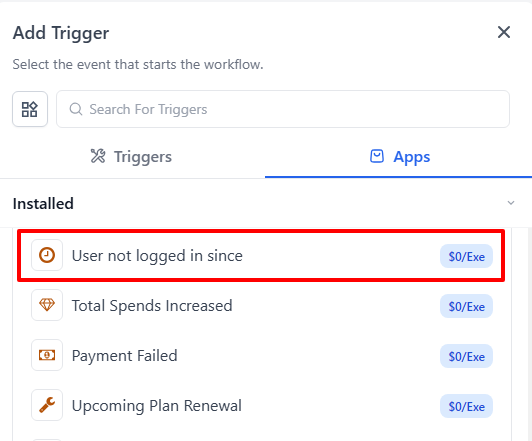
The User Not Logged In Since trigger activates when a user has not logged into their account for a defined period of time.
Login inactivity is often one of the earliest signals that a customer may be disengaging from your product. By using this trigger, you can automatically respond when adoption drops and take action before the account becomes at risk.
This trigger is commonly used for customer re-engagement workflows and internal alerts for Customer Success Managers (CSMs).
How the Trigger Works
When GoCSM detects that a user has not logged in for the configured time period, the workflow will automatically start.
Once triggered, the workflow can perform actions such as:
Sending re-engagement emails to the user
Notifying your Customer Success team
Tagging the account as inactive
Creating internal follow-up tasks
You can adjust filters to determine how long a user must be inactive before the workflow runs.
Trigger Filters
Filters determine which users activate this trigger and how the trigger behaves over time. There are two types: a required Primary Filter and optional Additional Filters.
Primary Filter
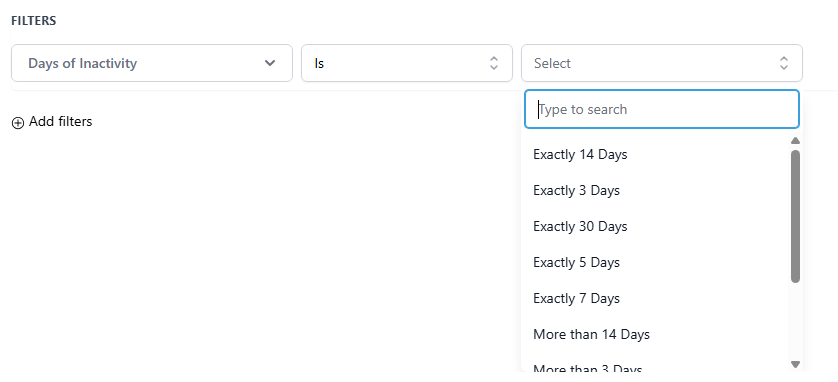
Days of Inactivity (Required)
Sets the inactivity threshold that must be met before the trigger fires.
Available values: 3, 5, 7, 14, 30 days
NOTE: If a user has never logged in, GoCSM uses their account creation date as the starting point for the inactivity calculation.
Additional Filters
These filters are optional and can be combined to narrow down which users activate the trigger.
Account Priority
Limits the trigger to accounts marked as a priority in your system.
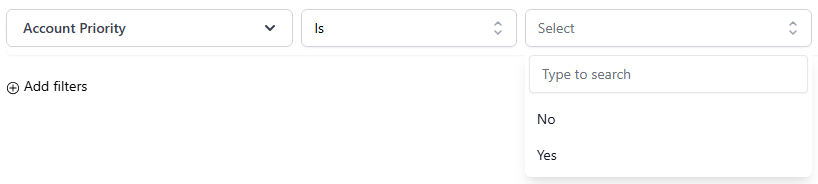
Use this to create separate, more urgent workflows for your highest-value accounts.
Key Users Only
Limits the trigger to users who have been marked as key contacts or primary decision-makers on the account.

Use this when you want to escalate inactivity alerts specifically for stakeholders who are critical to the account's health.
Re-trigger Cooldown
Controls how often this trigger can fire for the same user. This prevents the workflow from firing repeatedly for a user who remains inactive over a long period.
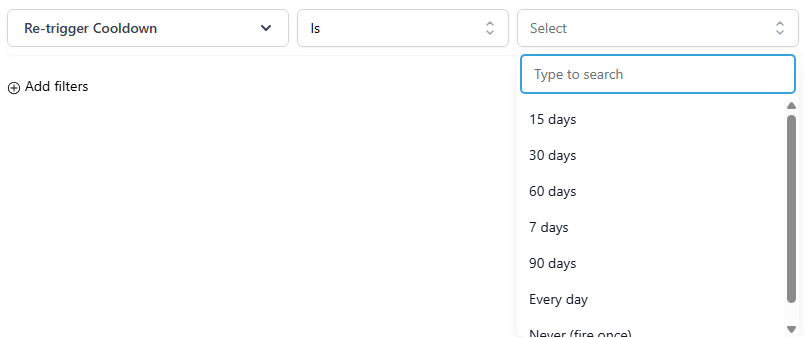
Recommendation: A cooldown of 30 days is a sensible default for most re-engagement workflows. Use shorter cooldowns for urgent internal alerts and longer cooldowns for email sequences to avoid over-messaging.
SaaS Plan
Limits the trigger to users whose sub-account is on a specific SaaS plan. The available plan options reflect the plans configured within your agency.
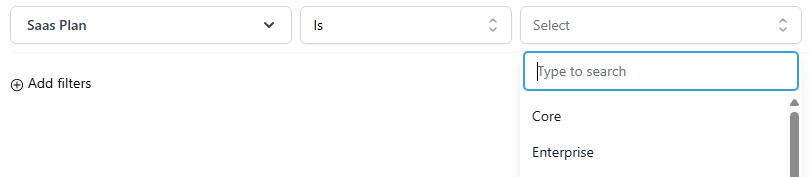
Use this to tailor re-engagement messaging based on what features a customer has access to, or to prioritize outreach for higher-tier accounts.
User Role
Limits the trigger to users with a specific role within the sub-account.
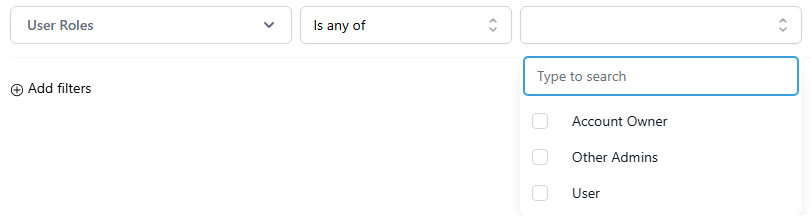
Use this to send different messages or alerts depending on the level of the person who has gone inactive. For example, treating an inactive owner differently from an inactive standard user.
Required Setup: Find Contact Step
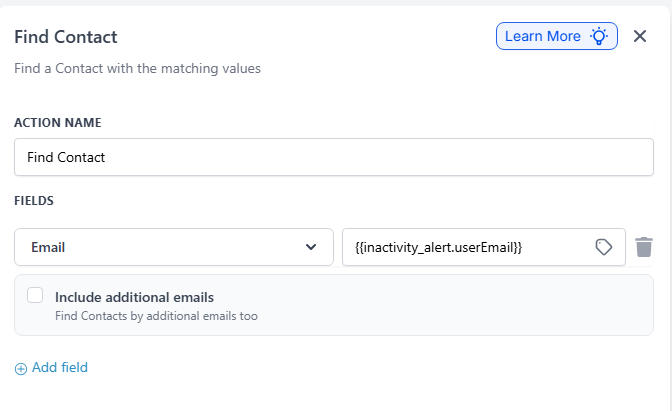
After the trigger activates, the workflow must identify which contact in your CRM the event belongs to. This is where the Find Contact action is required.
The Find Contact step searches your CRM using a field provided by the trigger event, typically the user’s email address.
For example:
Field: Email
Value: {{inactivity_alert.userEmail}}
This step is essential because the trigger event originates from the connected application, not directly from your CRM. The Find Contact action matches the event data to the correct contact record in your system.
Without this step, the workflow would not know which contact to update, notify, or message.
How to Build a Workflow Using This Trigger
Create a new workflow
Select User Not Logged In Since as the trigger
Configure the inactivity duration filter
Add the Find Contact action step
Map the Email field using the trigger variable
Add your desired actions such as notifications or messages
Publish the workflow
You can review the GoCSM template workflows for a reference implementation of this setup.
Recommended Uses
Notify your Customer Success team when a key user on a priority account has not logged in for 14 days
Send automated re-engagement emails to users on specific SaaS plans with relevant feature tips
Create separate workflows for Account Owners versus standard users who go inactive
Build escalating workflows: a soft email nudge at 7 days, an internal CSM alert at 30 days
Use the Fire Once cooldown for high-touch manual follow-up workflows so CSMs are not repeatedly notified for the same user
Was this helpful?
Still need help? Ask the team