AI Insights
Written By GoCSM
Last updated 6 months ago
AI Insights in GoCSM help you quickly understand what is happening in an account without having to analyze all the data yourself. Instead of digging through metrics, AI Insights summarize key signals, highlight risks, and suggest what to do next.
What Are AI Insights?
AI Insights are automatically generated summaries and recommendations based on an account's Health Score and activity. They turn complex data into plain explanations covering what is going well, what is going wrong, and what you should do next.
Insights reference real data including specific users, actual percentages, and lifecycle-aware context, rather than generic descriptions.
What You Will See
Pillar Summaries
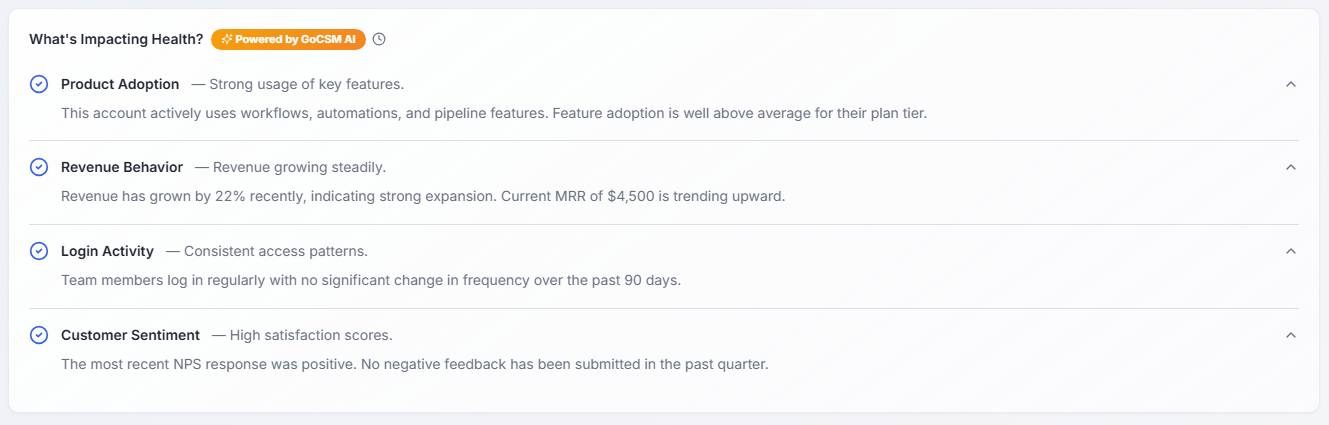
A short summary for each of the four pillars (Product Adoption, Revenue, Login Activity, and Customer Sentiment). Explaining what is happening, whether it is positive, neutral, or negative, and what is driving the score.
Example: "Usage is declining compared to last month, especially in key features."
Risk Alerts
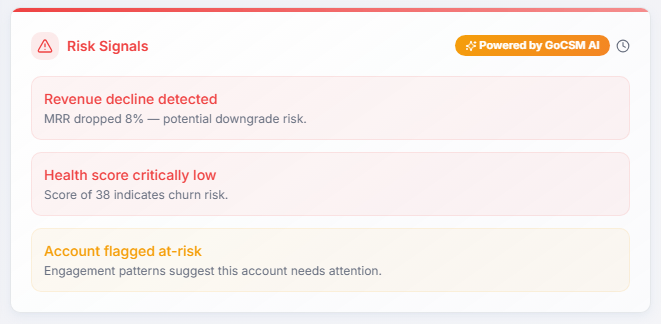
The top three risks for the account, prioritized so you know what to focus on first:
Critical → direct language, needs immediate action
High → firm language, should be addressed soon
Watch → softer language, early warning signals
Example: "Payment reliability dropped due to a recent failed charge."
Growth Opportunities
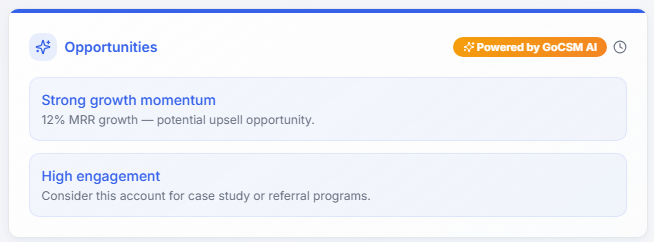
The top three positive signals you can act on: increased usage, strong engagement, positive sentiment, or expansion readiness.
Example: "High engagement from key users indicates potential for upsell."
Recommended Actions
Suggested next steps based on the account's health band:
How AI Insights Work
AI Insights are based on real account data including usage trends, revenue activity, login behavior, and customer feedback. They are updated weekly on Sundays and adjusted based on the account's lifecycle stage.
If AI is unavailable, the system automatically falls back to rule-based insights so you are never left without context.
How to Use AI Insights Effectively
Start with AI, Then Verify
Use AI to quickly understand the situation, then check the account details to confirm the data behind the insight before taking action.
Focus on the Top 1 to 3 Signals
Do not try to fix everything at once. Prioritize the most important risk and the biggest opportunity. This keeps your workflow focused and effective.
Turn Insights into Immediate Actions
Declining usage → send a training or walkthrough
Low login activity → contact the account owner
Negative sentiment → follow up and resolve concerns
Use Insights to Personalize Outreach
AI gives you specific context you can use in client conversations instead of generic messages:
"I noticed usage has dropped this month"
"Looks like your team has been less active recently"
Combine AI with Your Judgment
AI helps you move faster, but it does not replace your experience. Always consider your relationship with the client, context not captured in the data, and recent conversations or updates.
Was this helpful?
Still need help? Ask the team