Sub-Accounts
Written By GoCSM
Last updated 4 months ago
The Sub-Accounts page in GoCSM provides a detailed view of every tracked account in your agency. This is where you analyze, filter, and take action on individual accounts based on their health, revenue, and engagement data.
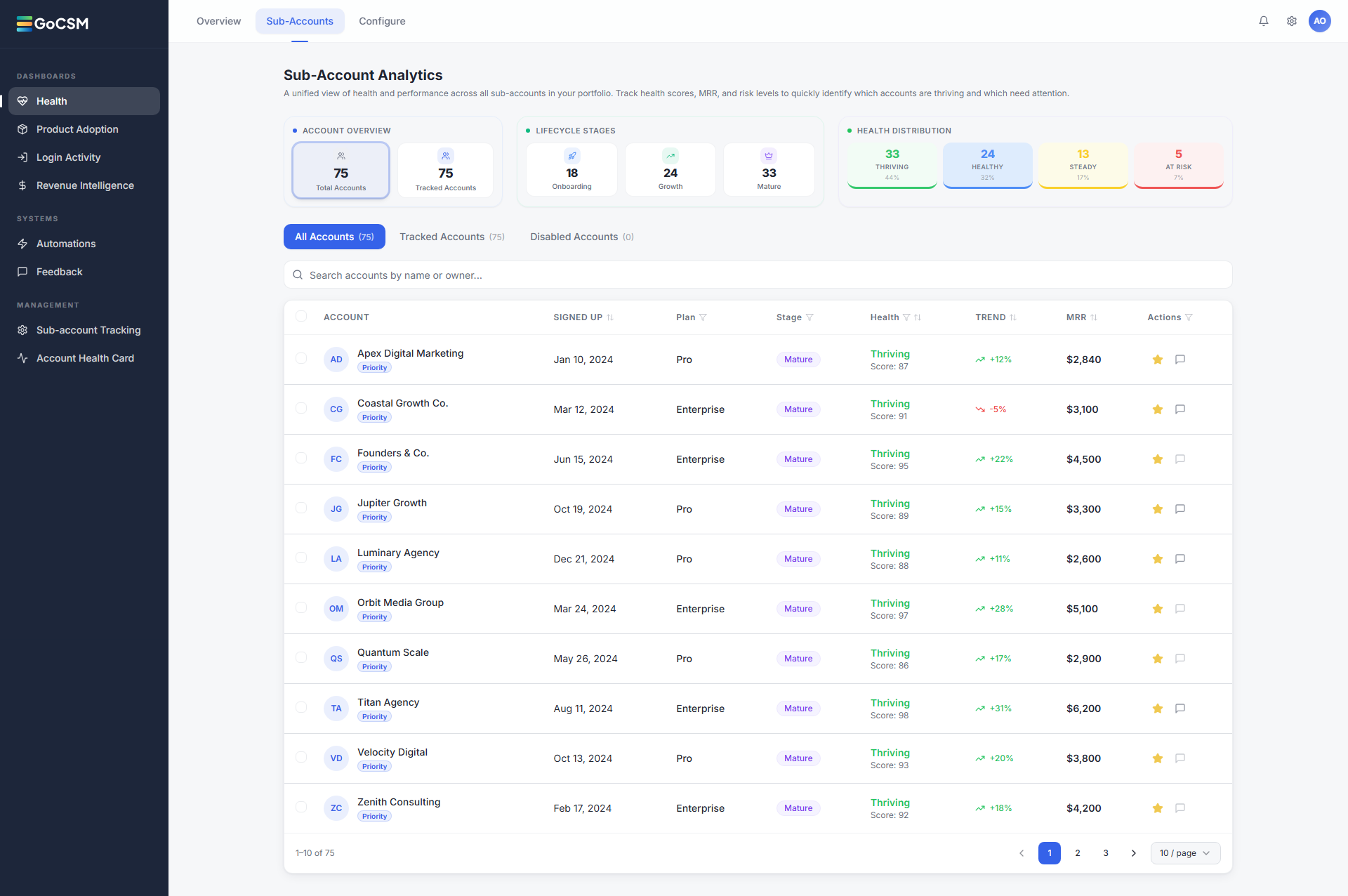
What You Will See
Account Summary

At the top of the page you will see your total tracked accounts, lifecycle stage distribution (Onboarding, Growth, Mature), and health band distribution (Thriving, Healthy, Watch, At Risk). This gives you quick context before diving into individual accounts.
Account Table
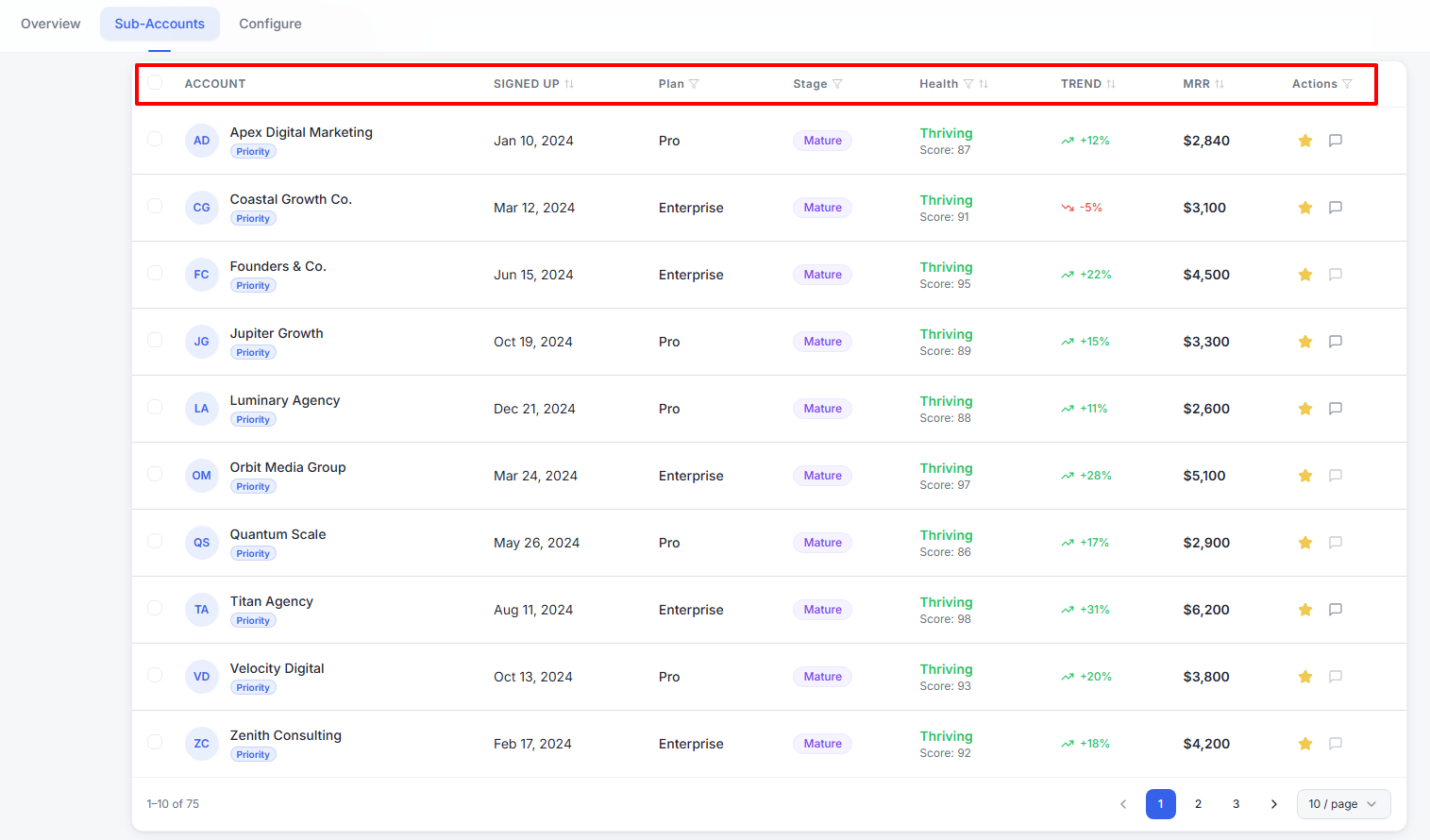
Each row represents a sub-account and includes:
Account name and signup date
Plan and lifecycle stage
Health score and band
Trend indicator (improving or declining)
Monthly recurring revenue (MRR)
The table is sortable by any column, so you can quickly rank accounts by health score, MRR, or trend direction depending on what you are focusing on.
Tabs and Filters
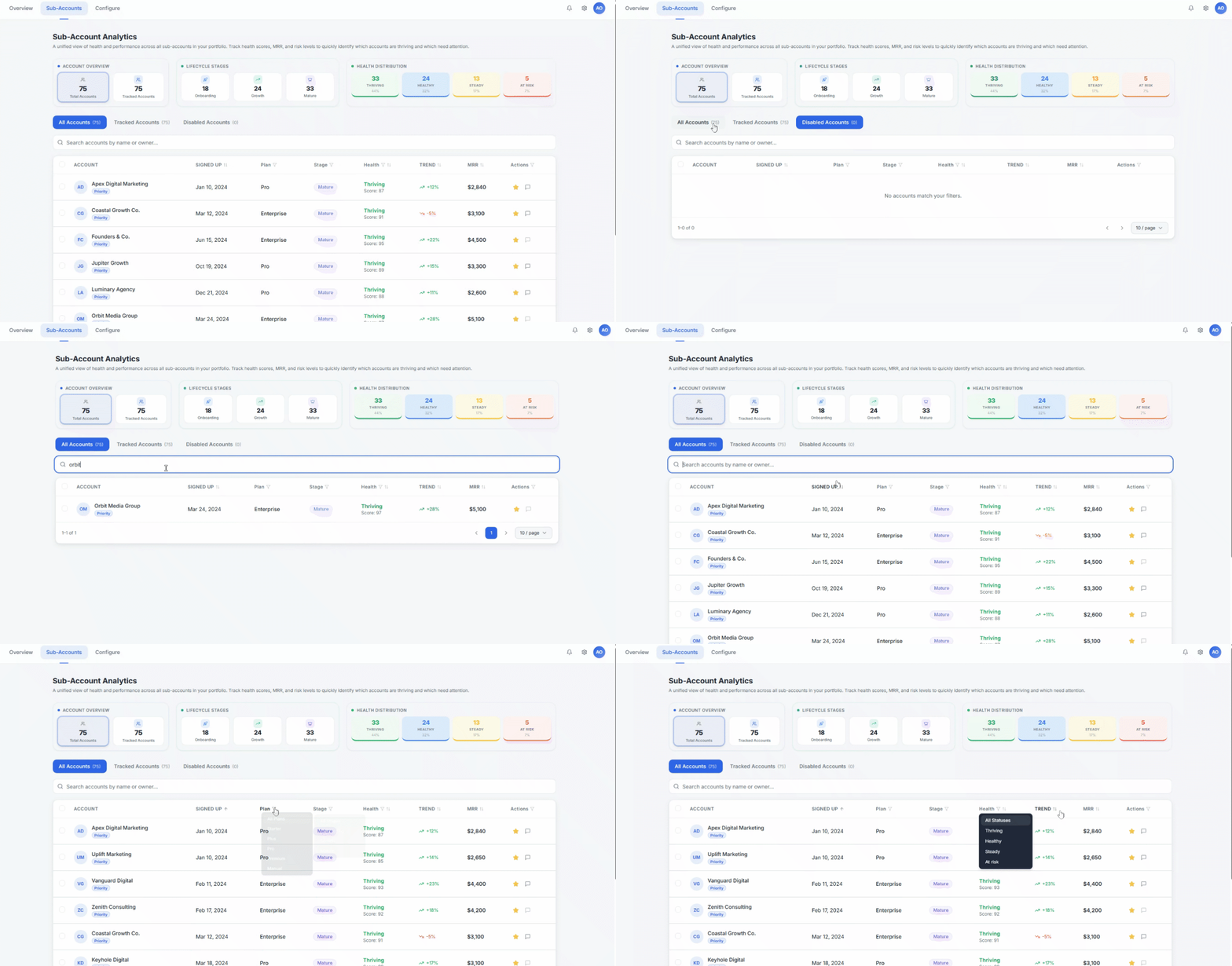
The page includes three tabs to help you focus:
All Accounts: Every tracked sub-account in your agency
Priority Accounts: Accounts you have flagged as high-value or strategically important
At Risk: Accounts scoring 0-39 that require immediate attention
You can also search by account name or filter by owner to narrow down the view further.
Actions
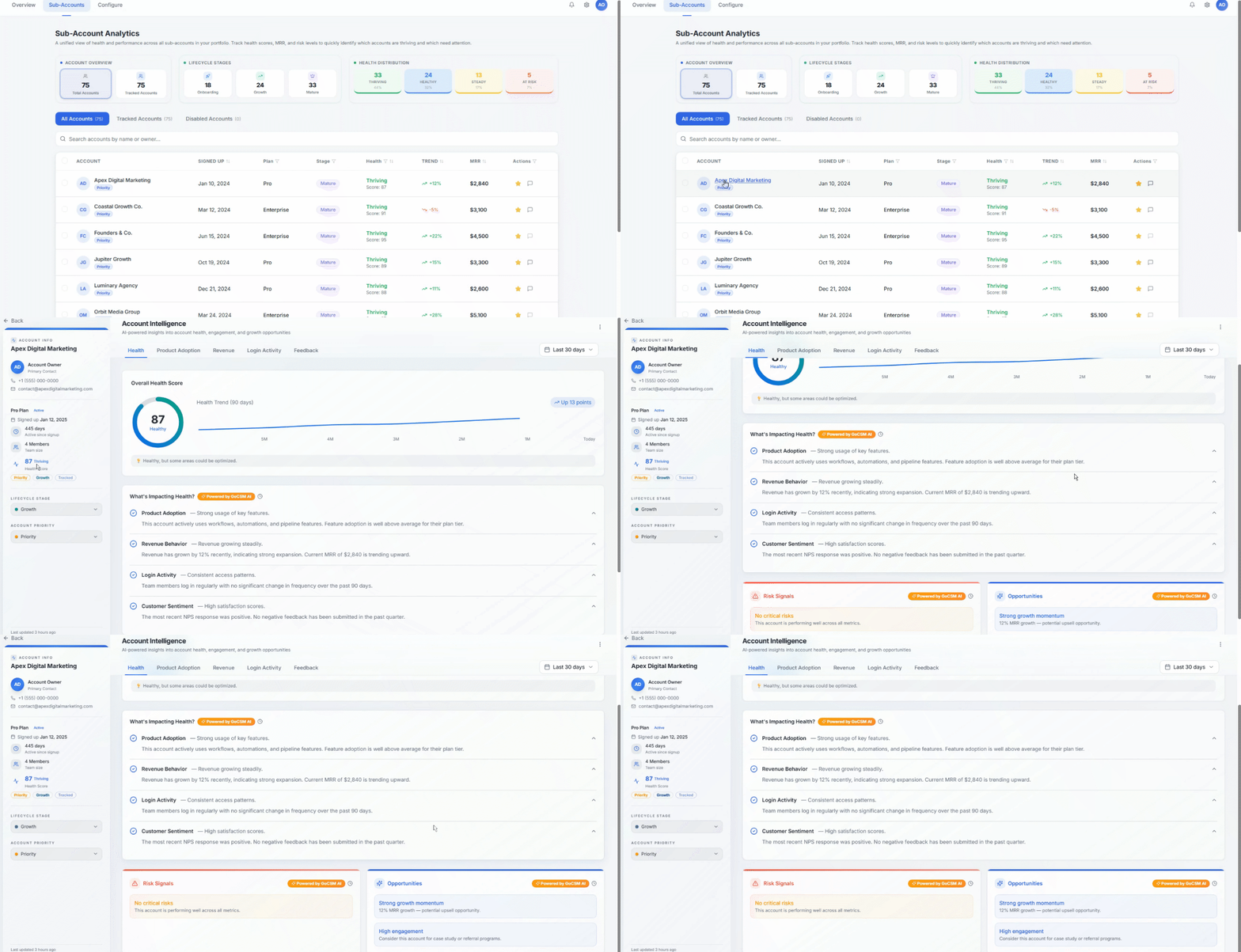
For each account, you can view detailed health insights broken down by pillar, take action based on health status, and identify opportunities or risks at the individual account level.
How to Use the Sub-Accounts Page Like a CSM Dashboard
1. Segment Before You Act
Use the tabs and filters to group accounts before taking action:
“At Risk” with high MRR: urgent, revenue is exposed
“Watch” with declining trend: early intervention before they slip to At Risk
“Thriving”: expansion opportunities, upsells, testimonials
2. Prioritize by Impact, Not Just Score
Focus on high-revenue accounts, strategic clients, and fast-declining accounts, not just the lowest scores. A “Watch” account with $5,000 MRR trending downward may deserve more attention than an At Risk account with $200 MRR.
3. Use Trends as Your Early Warning System
Stable but declining: hidden risk building quietly
Improving but low: recovery in progress, stay the course
Act early instead of waiting for accounts to drop further. The trend direction column makes this visible at a glance.
4. Turn the Table into a Workflow
Review 3 to 5 accounts per session
Analyze their health breakdown by pillar
Take one clear action per account
Was this helpful?
Still need help? Ask the team