Users Tab
Written By Sara Irfan
Last updated 5 months ago
What is the Users Tab?
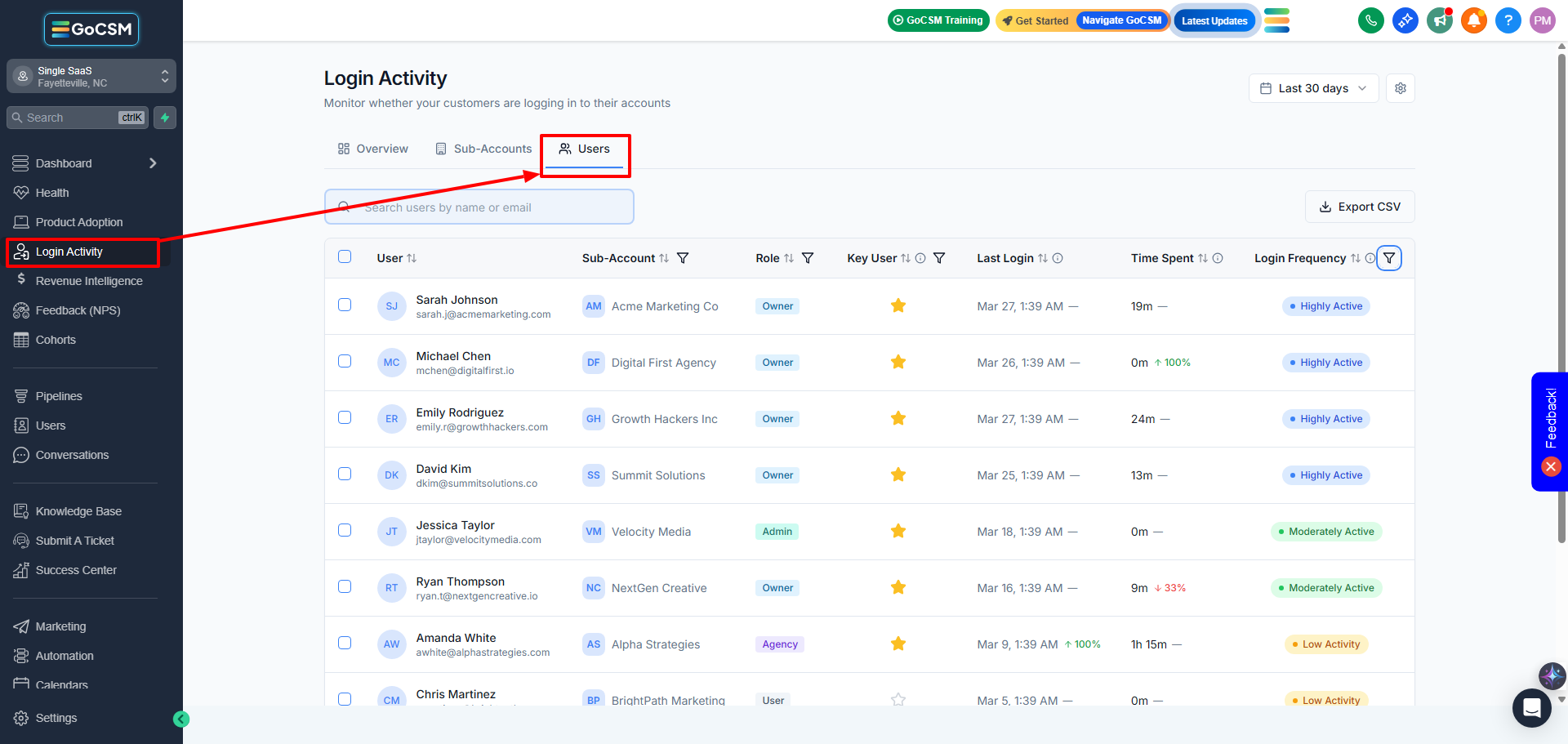
The Users tab shows individual user-level engagement data across all your sub-accounts. Instead of looking at an account as a whole, you can see exactly which people are logging in, how often, how long they spend, and what role they hold.
What You Can Do with the Users Tab
Find your power users. Sort by Total Time Spent or filter by Frequency: Heavy to identify the people who live inside your platform. These are your best candidates for case studies and testimonials.
Flag key contacts. Use the Key User badge to manually mark account owners, decision-makers, or champions for easy filtering.
Identify inactive team members. If a sub-account has 5 users but 3 of them are ghosting, you now know exactly who needs re-engagement or training.
Detect agency admin activity. See which users are Agency Admins logging into client accounts. Toggle "Display Agency Admins/Users" in Settings to include or exclude them.
Users Tab Metrics
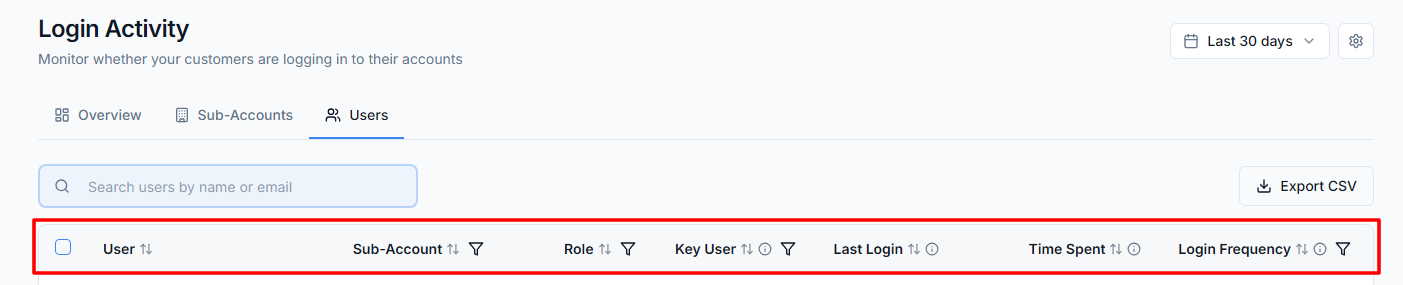
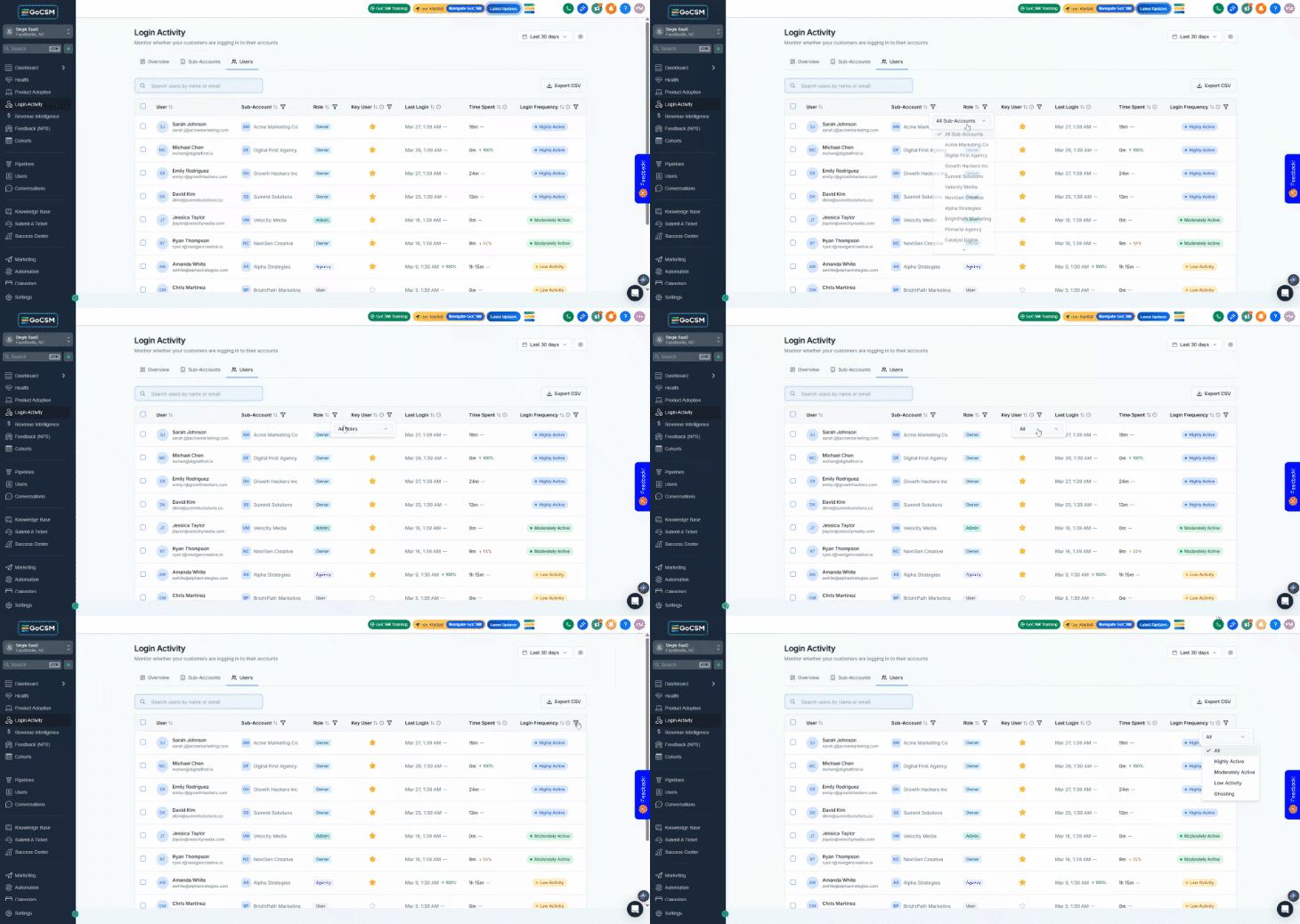
Users Tab Filters
Bulk Actions


Bulk Actions let you select multiple sub-accounts or users and take action on them at once — trigger a GHL workflow, request feedback, or export data. This turns your login activity data from a passive dashboard into an active outreach tool.
What You Can Do with Bulk Actions
Trigger re-engagement workflows for dormant accounts. Filter by Dormant status, select all matching, and fire a GHL workflow that sends a check-in email, an SMS, or books a call.
Request feedback from engaged clients. Select healthy sub-accounts and send a feedback request to their account owners.
Export data for offline analysis. Download a CSV of any filtered view for reporting, team meetings, or import into other tools.
Build targeted outreach lists. Combine filters (e.g., Plan: Starter + Status: Active) to find specific groups of accounts, select them, and trigger a workflow.
How to Select Rows
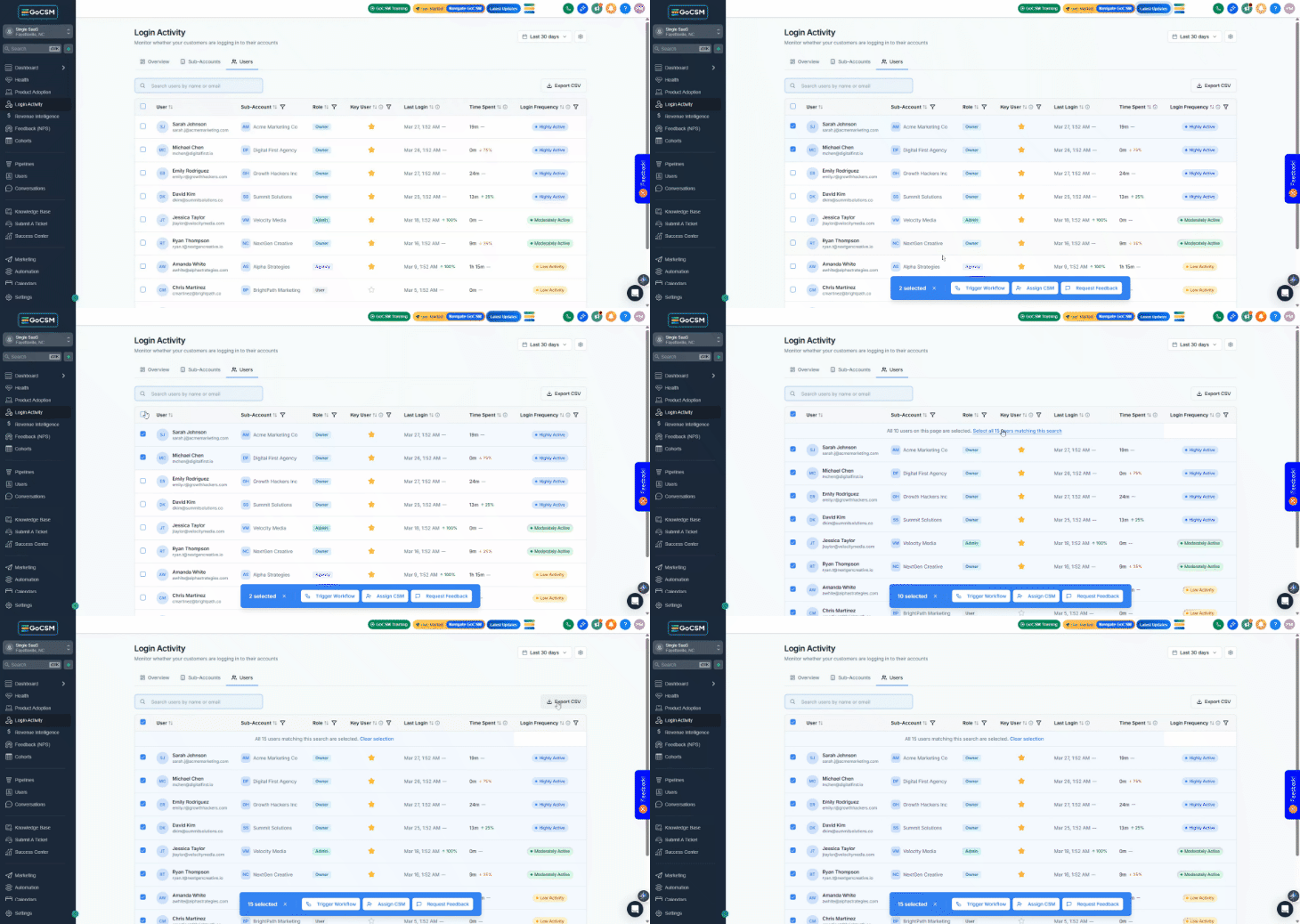
Single row: Click the checkbox next to any row.
Select all on current page: Click the checkbox in the table header.
Select all matching: After selecting rows, click "Select all Y items matching this search" to include rows beyond the current page.
Available Bulk Actions
Common Questions & Answers
Why is a user showing 'Deleted User' with activity data?
When a user is removed from a sub-account, their historical activity data is preserved. The user row will display "Deleted User" instead of their name/email. This is by design, you don't lose engagement history when someone leaves.
One of my users shows up under a different sub-account than I expected, why?
We show the sub-account from the user's most recent login. If a user has access to multiple sub-accounts, the "Sub-Account" column will display whichever account they last accessed. This is expected behavior.
How is login activity tracked through the mobile app?
GoCSM only tracks feature adoption and revenue intelligence through the mobile app. Login activity is not tracked through the GHL mobile app. The tracking relies on browser-based logins, which are only generated only in the web app.
What does 'Key User' mean and how do I set it?
Key User is a manual flag you set on individual users. It's not auto-detected. Use it to tag the people you consider most important. Account owners, decision-makers, or power users. Once flagged, you can filter the Users tab by Key User: Yes to see only those users.
Was this helpful?
Still need help? Ask the team