Sub-Accounts Tab
Written By Sara Irfan
Last updated 6 months ago
What is the Sub-Accounts Tab?
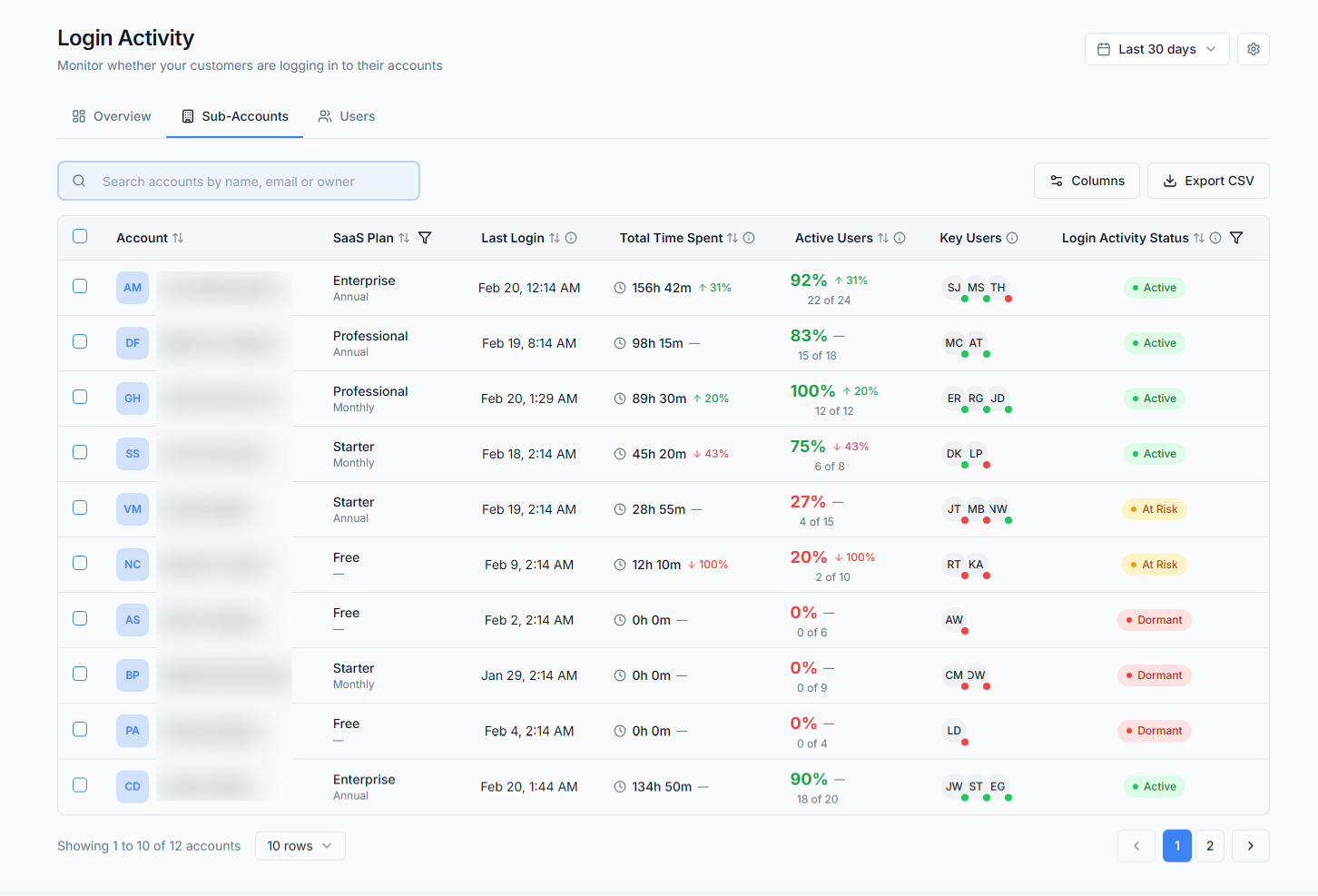
The Sub-Accounts tab is your account-level view of engagement. Each row represents one of your SaaS client sub-accounts, showing their login activity status, user counts, time spent, and last login timestamp. This is where you evaluate individual accounts.
What You Can Do with the Sub-Accounts Tab
Find accounts that need outreach. Sort by "Last Login" to see which accounts haven't logged in recently.
Validate onboarding success. Filter by your SaaS plan and check which new sub-accounts have actually logged in vs. which ones signed up and disappeared.
Identify upsell candidates. Filter by a lower-tier plan and look at active users and time spent. Accounts with heavy engagement on a lower plan are upsell opportunities.
Spot team adoption gaps. If a sub-account has 8 total users but only 1 active user, the account owner adopted but their team didn't.
Sub-Accounts Tab Metrics

Sorting & Filtering
What is Sorting & Filtering?

Sorting and Filtering let you organize and narrow down the data on the Sub-Accounts and Users tabs. Sort by any column to rank accounts or users by a specific metric, and use filters to show only the rows that match your criteria.
What You Can Do with Sorting & Filtering
Find your most at-risk accounts fast. Sort by "Last Login" in ascending order. Accounts that haven't logged in the longest will be at the top.
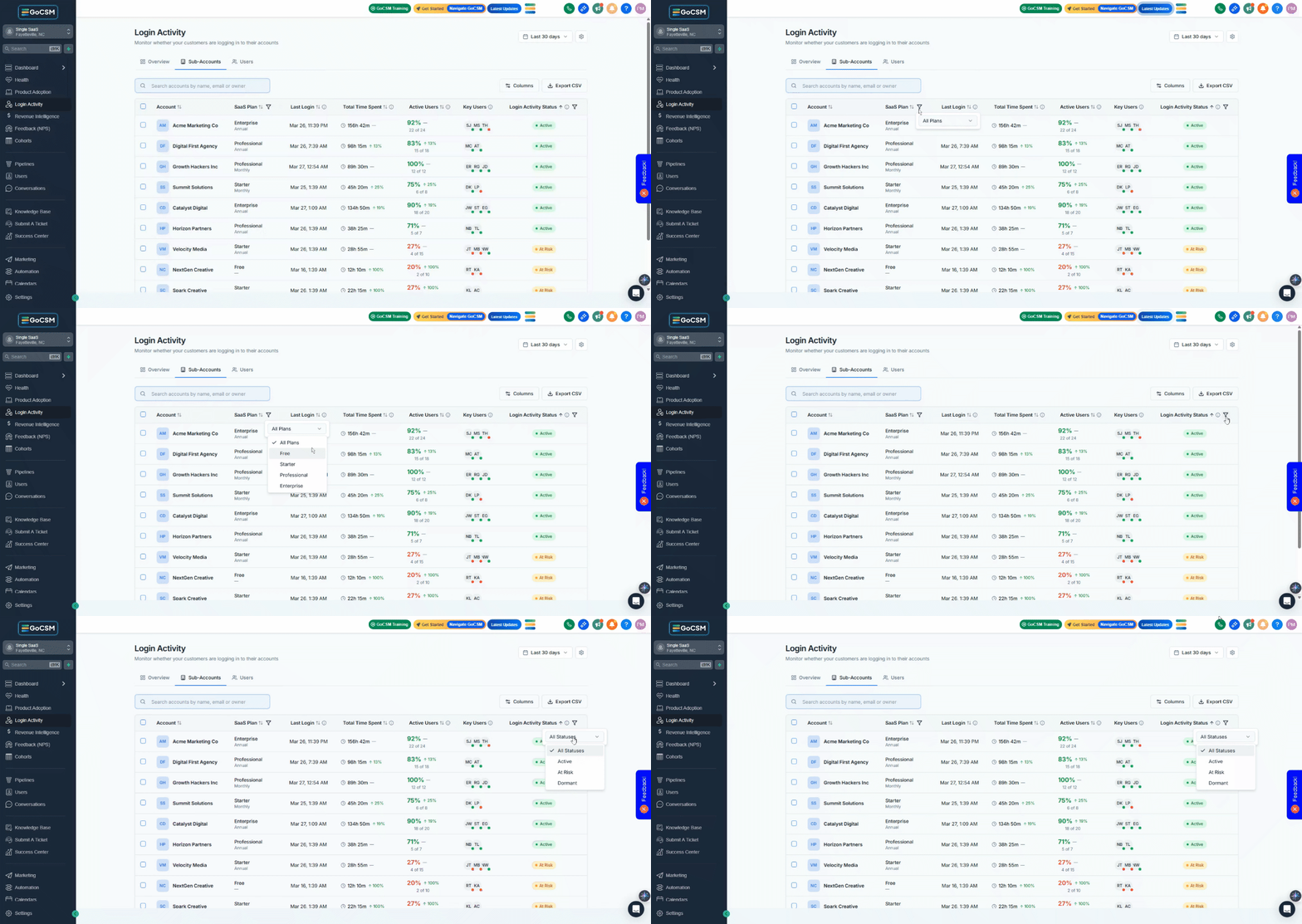
Focus on a specific SaaS plan. Filter by Plan on the Sub-Accounts tab to see engagement for just one tier.
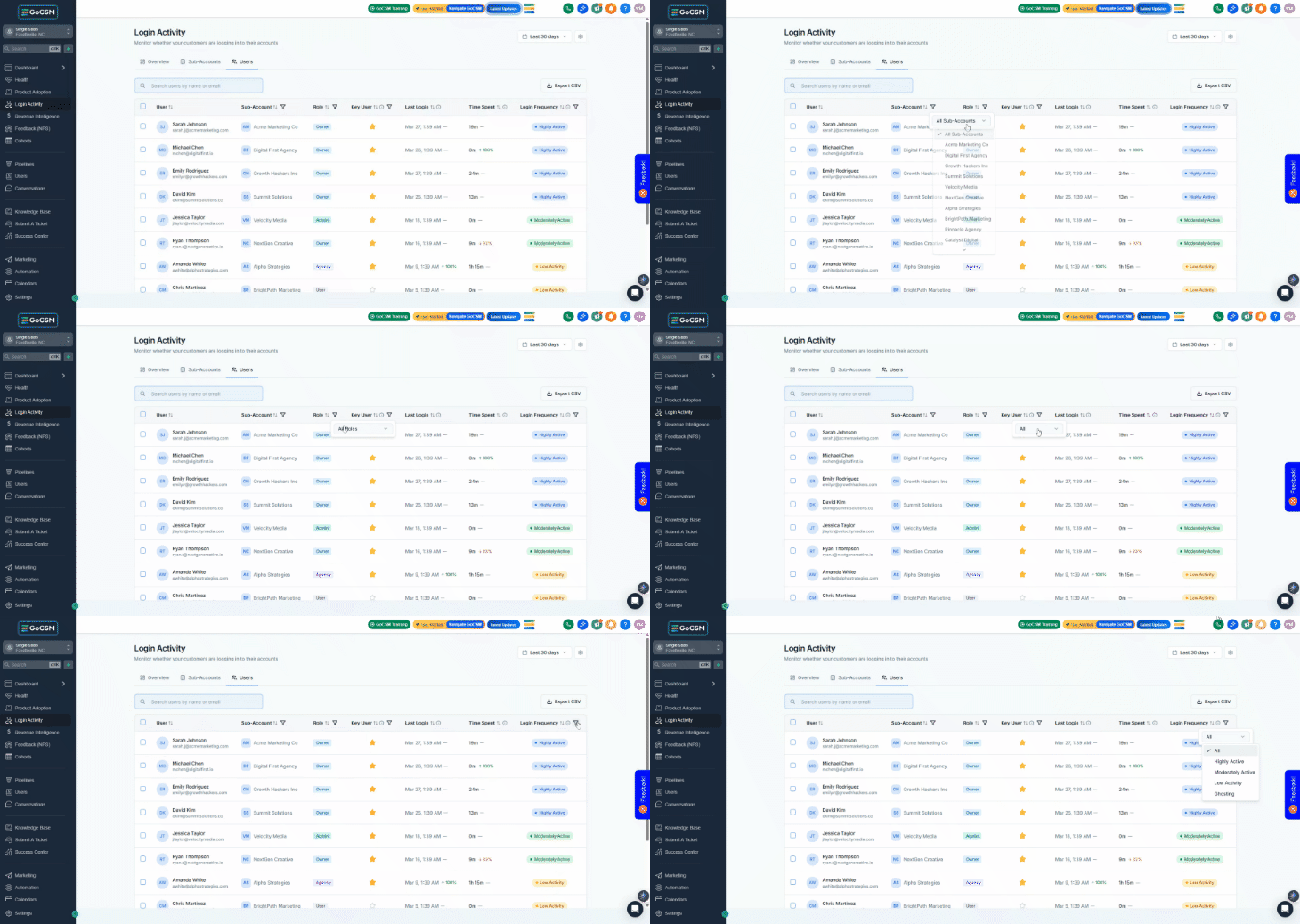
Isolate ghosting users. On the Users tab, filter by Frequency: Ghosting to see every individual user who is barely engaging.
Build targeted lists. Combine filters (e.g., Status: Active + Plan: Starter) to find specific segments, then use Bulk Actions on the result.
Review key contacts only. On the Users tab, filter by Key User: Yes, to focus on the users you've flagged as important.
How to Sort
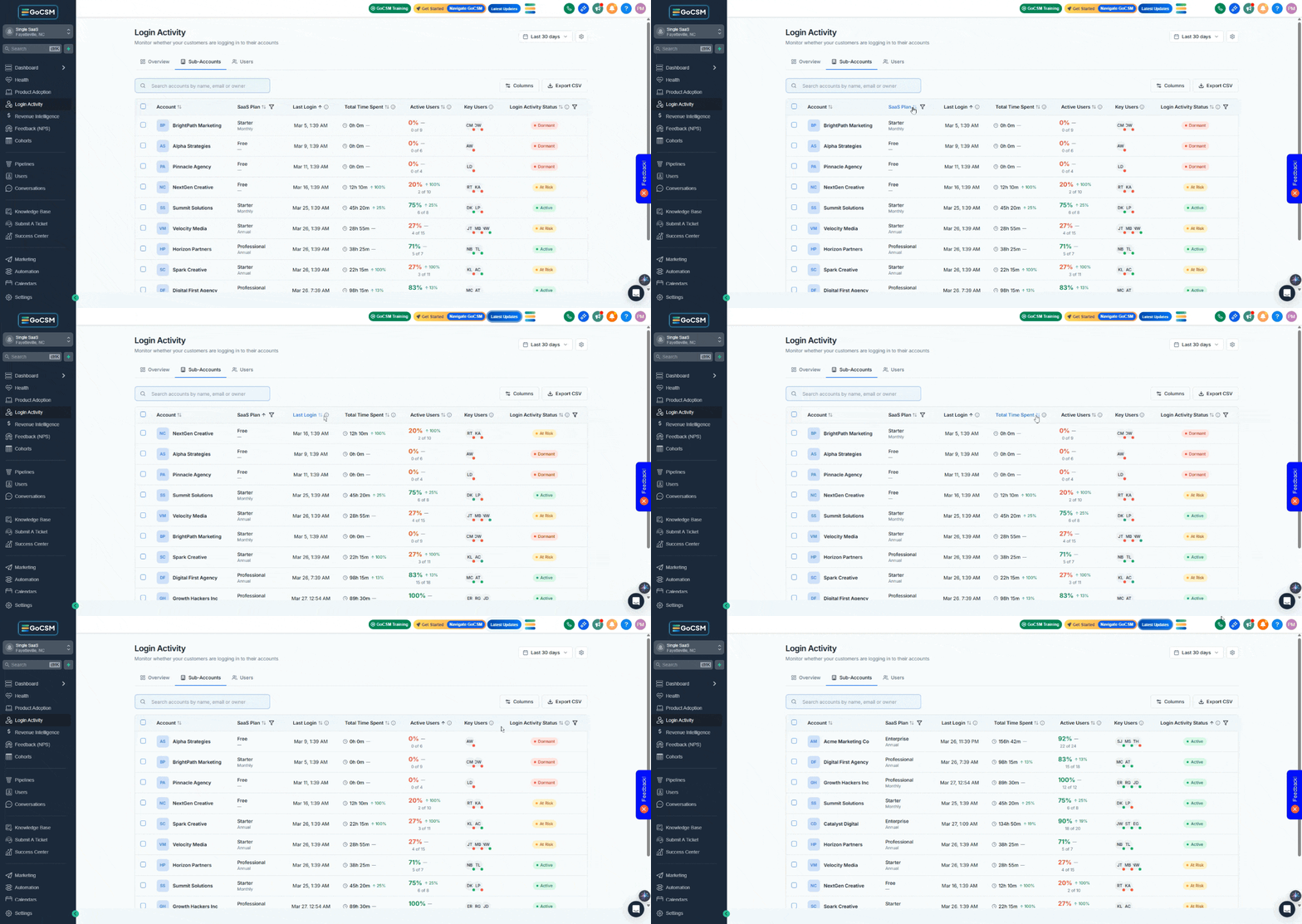
Click any column header to sort by that field.
Click again to reverse the sort direction (ascending ↔ descending).
Filter Options
Sub-Accounts tab:
Users tab:
Time Spent Tracking
What is Time Spent Tracking?
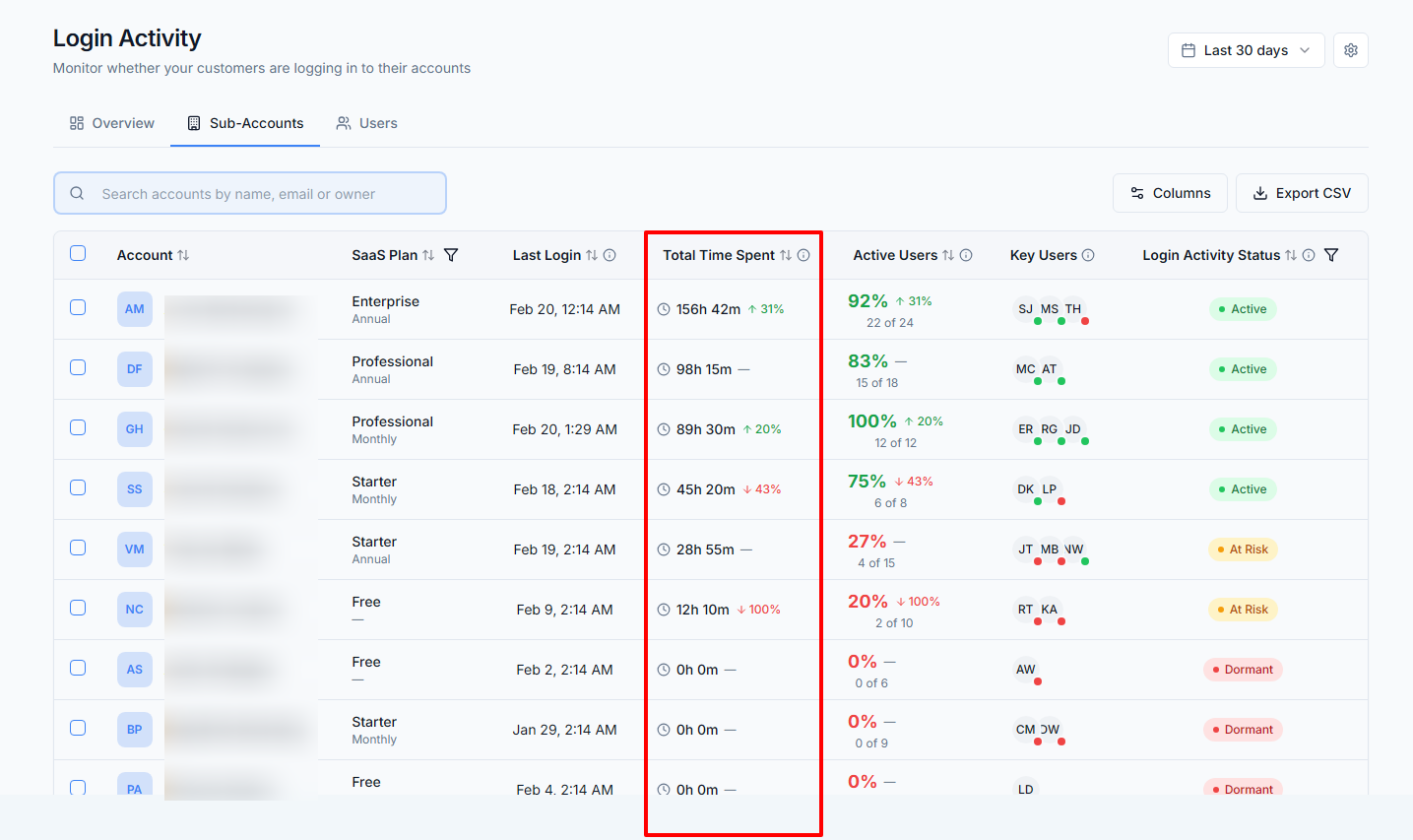
Time Spent measures how long users actively engage with your platform, not just whether they logged in, but how much time they actually spent using it.
What You Can Do with Time Spent Tracking
Distinguish between real engagement and drive-by logins. A sub-account that logs in daily for 2 minutes each time is very different from one that logs in daily for 45 minutes. Both show as "Active" in status, but time spent reveals the depth of engagement.
Identify accounts that need training. Low time spent combined with Active status often means the user logs in, doesn't know what to do, and leaves.
How Time Spent Is Calculated
Data gets sent every 15 seconds while the user is actively using the app.
The Page Visibility API pauses tracking when the tab is hidden or the user switches to another window.
If a user is idle (no interaction) for 5 minutes, tracking stops.
Time is aggregated server-side with safety caps to prevent anomalies.
Common Questions & Answers
What's the difference between Total Users and Active Users?
Total Users is everyone who has access to that sub-account, whether or not they've ever logged in. Active Users only counts people who actually opened the app within the selected time window. A sub-account with 10 Total Users and 2 Active Users (30d) means 8 people have credentials but haven't touched the platform in a month.
Why does a sub-account show 'Dormant' when I know the client was just active?
Check three things: (1) Data delay, if they just logged in, wait 2-3 minutes and refresh. (2) Timezone, "today" is based on your browser's timezone, not UTC. (3) Filters, make sure you're not looking at a filtered view that's hiding recent activity.
A sub-account has 0 total time spent but shows a recent Last Login, how?
Each login day adds a 2-minute minimum to total time. If you're seeing 0, the data may not have fully aggregated yet. Wait a few minutes and refresh. If it persists, the user may have opened the app and immediately closed it before any events were recorded.
Why doesn't the time spent match what I expect?
Key factors:
Only active tab time is counted at a time. Hidden tabs don't accumulate time.
Idle detection pauses tracking after 5 minutes of no activity.
Daily time per user is capped at 8 hours.
Each login day adds a 2-minute minimum.
Does time count if a user just leaves a tab open all day?
No. If the user isn't actively interacting, tracking stop after 5 minutes of idle time. A tab that's open but untouched doesn't accumulate time.
Was this helpful?
Still need help? Ask the team